![iTunesArtwork@2x.png]](https://help.groomer.io/hs-fs/hubfs/iTunesArtwork@2x.png?height=50&name=iTunesArtwork@2x.png)
Using Clover? See How to Enable Clover and Connect Your Device.
Before you start:
-Make sure Square is connected to your Groomer.io account. See How to Enable Square.-If your Square Terminal is already signed in to Square, sign out of it first.
Step 1: Add the terminal in Groomer.io
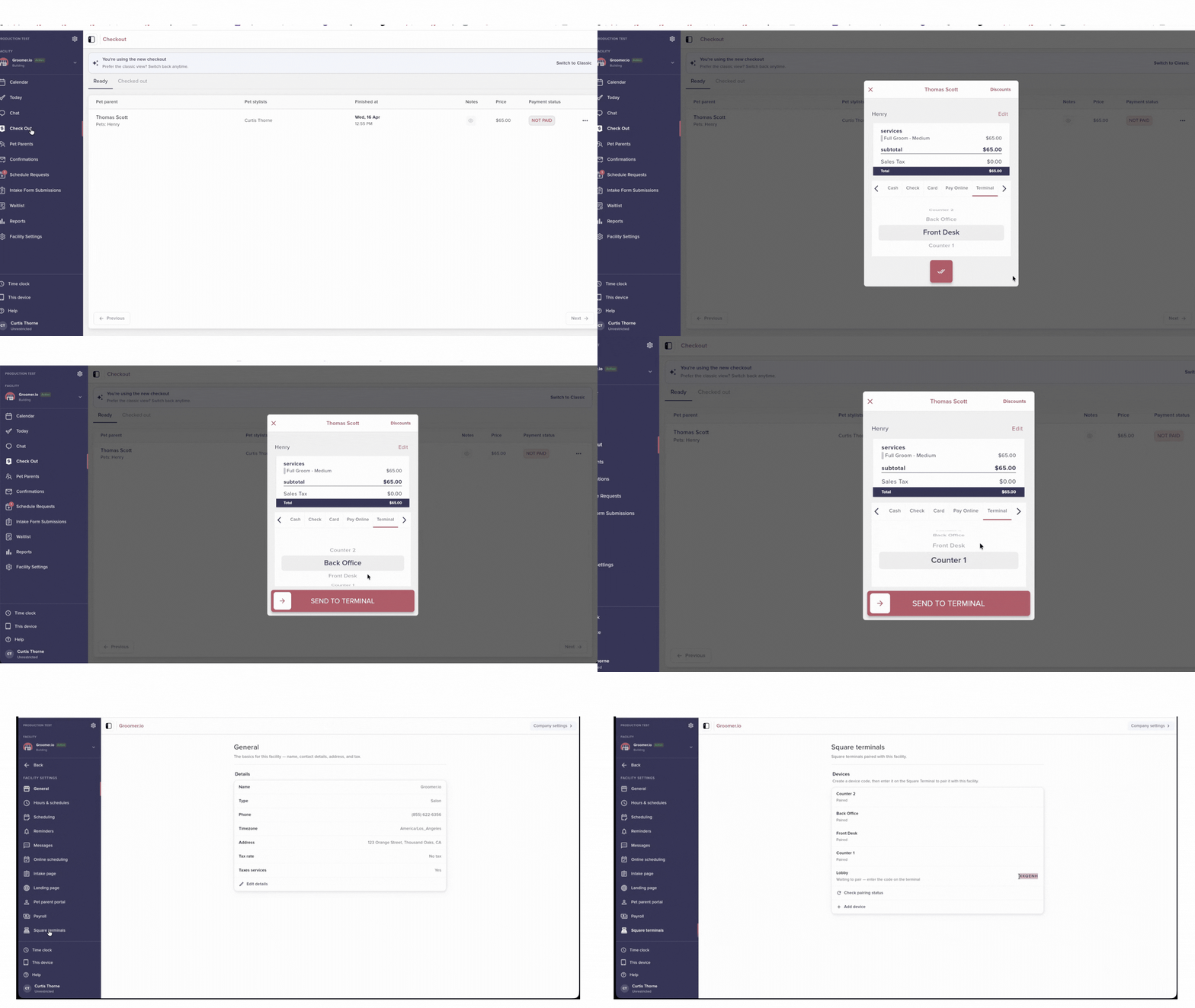
-Within the App, go to Salon Settings/Territory Settings
-Select Square Terminal from the left menu.
-Select Add Device.
-Give the terminal a name for this facility, such as "Front Desk" or "Van 2."
A pairing code appears next to the device name. Keep this screen open.

Step 2: Sign in on the Square Terminal
-On the Square Terminal, tap Sign in, then Use device code.-Enter the code shown next to the device name in Groomer.io.
Taking a payment with the terminal
-Open the checkout screen and select the customer.-Scroll through the payment options and select Terminal.
-The total is sent to the terminal for the customer to pay.
-Once Payment is completed, Groomer.io will automatically update to the Follow-Up Screen.
Click HERE if you need help deleting a Square terminal location.
If you experience any issues in regards to setting up your terminal, please reach out to Support@Groomer.io.