![iTunesArtwork@2x.png]](https://help.groomer.io/hs-fs/hubfs/iTunesArtwork@2x.png?height=50&name=iTunesArtwork@2x.png)
What is Smart Scheduling?
Smart Scheduling is built for mobile groomers. When you book from the Map screen, it shows you how the new stop fits into your day: drive times, arrival times, and whether any appointment would run late. You don't have to sort through addresses yourself, and less drive time means more grooms in your day. 🚐
- Set up mobile grooming first: Smart Scheduling works best once your rigs, coverage area and service areas are set up. See How to Set Up Mobile Grooming: Rigs, Coverage Area & Service Areas.
- Using Classic 2.0? See How to Schedule an Appointment - MOBILE (iOS V2).
- Not a mobile groomer? See How to Schedule an Appointment - BLOCK or How to Book an Appointment - Bulk.
Use the Day Selector to Get Started
- Go to the Map screen.
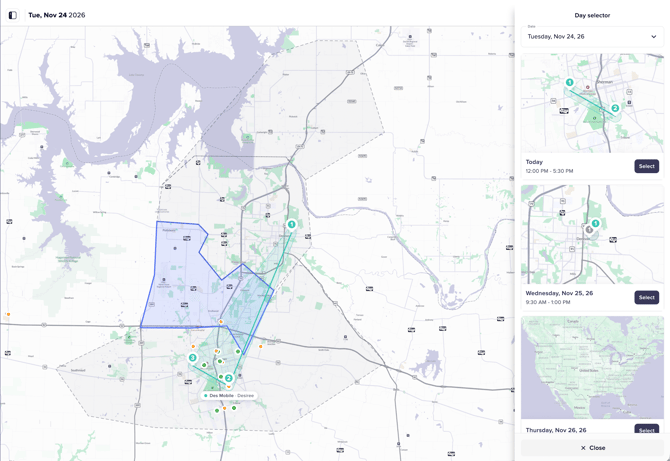
- Your stops for the day show on the map, numbered in route order with each appointment's time.
- Select the day button at the top right corner.
- Scroll through the days. Each one shows a mini map of that day's stops and the time range you're booked.
- Select the day you want to book.
Find the Pet Parent
- Select Create Appointment+ to search for the Pet Parent you are booking.
New pet parent? Select Add New Customer at the top of the search results and enter their details. Make sure to add a full, correct address so they show up in the right spot on the map.
Choose Pets and Services
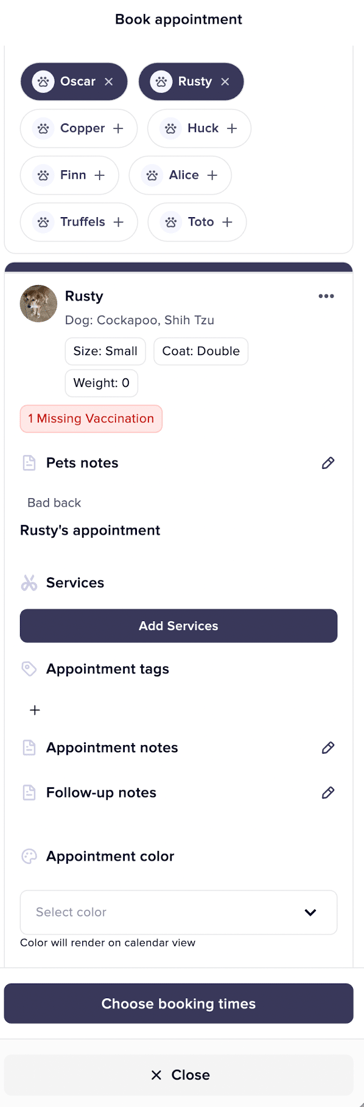
- From the sidebar, select which pets you are scheduling for.
- Select Add Services for each pet.
- Update any Notes or Tools needed.
- Need to see what you did last time? Select VIEW HISTORY. You can also add Pets Notes, Appointment Notes, and Follow-Up Notes here.
- Once each pet is updated, select the Choose Booking Time button.
-
Choose the Best Spot in Your Route
Smart Scheduling now helps you see how a new appointment fits into your selected day's route and gives you options to find the best placement, or if there is a better route to move the appointment to.
- Add to Current Route: Book the appointment on the selected day using the current groomer's route.
- Create a New Route: Schedule the appointment on the selected day with another groomer.
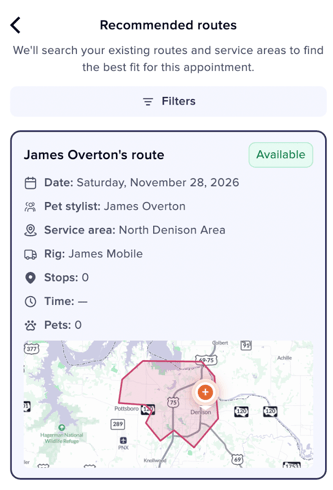
- View Recommended Routes: Explore future dates that may be a better fit based on the Pet Parent's location.
If you're selecting Add to an Existing Route, you can also select See Recommended Times to explore options for optimizing the route and finding the best appointment time.
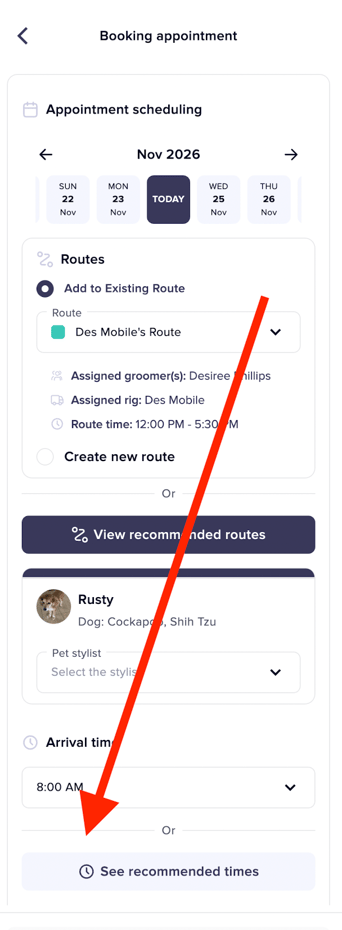
Recommended Times: Displays available placement options for the new appointment within your existing route, taking into account the variables that affect scheduling and route optimization.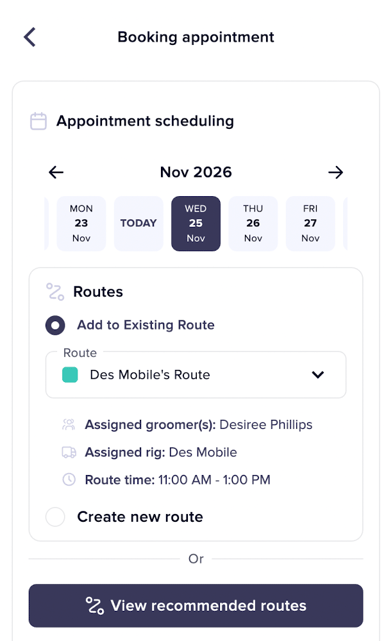 View Recommended Routes: Shows future route options for the appointment, factoring in scheduling availability, service durations, and the Pet Parent's location to help find the best day and route.
- Assign a Stylist. Once you've selected a route, you'll assign a Stylist to each pet. Groomer.io will automatically alert you if the selected Stylist isn't scheduled to service that area at that time. You can still choose to proceed with the booking if needed.
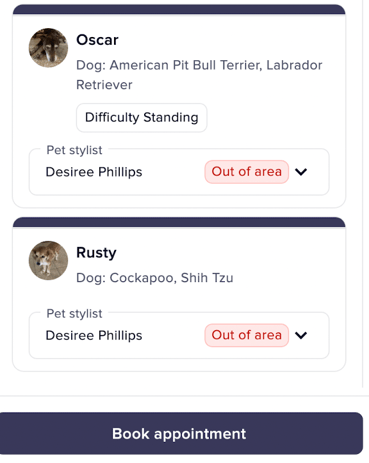
- Select Book Appointment.
Notify the Pet Parent
-
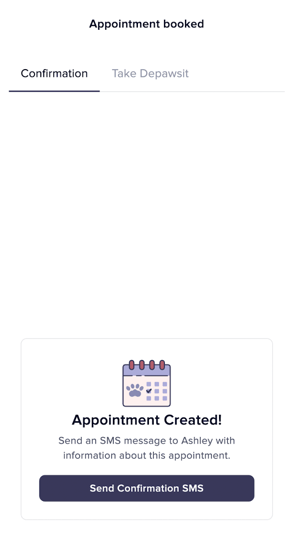
- Select Send Confirmation SMS to text the pet parent their appointment details.
- Want to secure the appointment? Select the Take Depawsit tab to take a deposit.
Good to Know
- Addresses matter: Smart Scheduling uses each pet parent's address to work out drive times. If a pet parent doesn't show in the right spot, check their address first.
- Read the colors: For Route Optimization, Green means everyone stays on time. Red means at least one stop would run late, so you may want to try another spot or another day.