![iTunesArtwork@2x.png]](https://help.groomer.io/hs-fs/hubfs/iTunesArtwork@2x.png?height=50&name=iTunesArtwork@2x.png)
How Mobile setup works:
Mobile setup has three parts. Do them in this order:
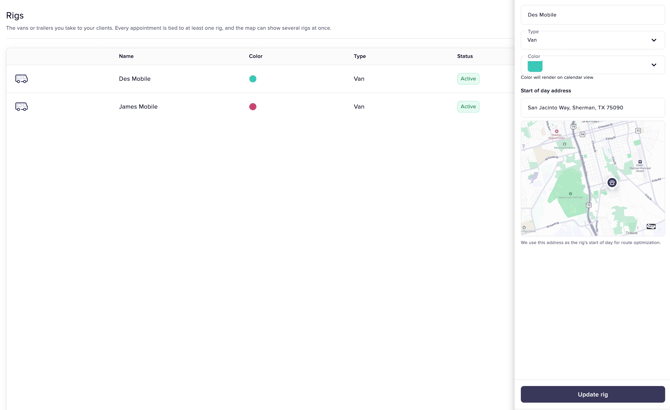
- Rigs are your grooming vans. The first rig is created by default. You can edit the name and color as desired. Add one for each van you run.
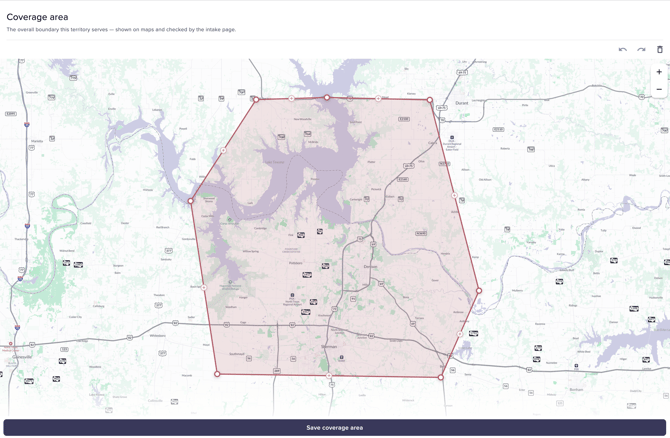
- Mobile Coverage Area is the whole region your business travels to.
- Mobile Service Areas are smaller zones inside your coverage area that you assign to days or vans.
Create a Rig
- Go to Territory Settings > Rigs
- Tap on the +Create a Rig button, or tap the 3 dots to edit the default rig.
- Create the Rig Name
- Choose a Type, van or trailer.
- Choose a Color. This is what color your route will reflect on the Map Screen.
- Set the Start of Day Address.
- Select Update Rig/Save
Create your Mobile Coverage Area
- Go to Territory Settings > Coverage Area
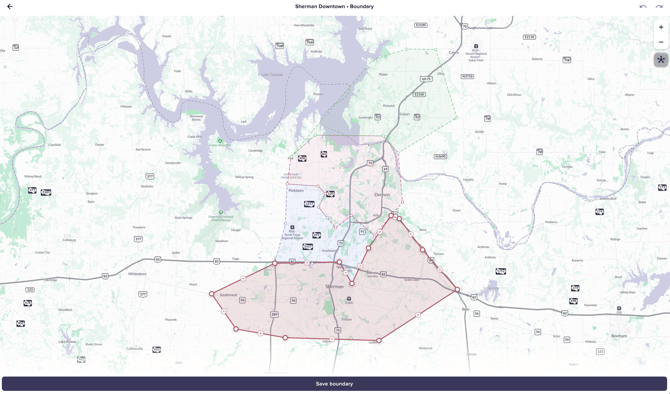
- Select any 3 points on the map to begin creating your boundary.
- You are able to drag each point as much as needed by zooming in, or tapping on the + to expand another line.
- Once you have outlined your entire coverage area, Select Save. You can make changes to this area at anytime.
Create Mobile Service Areas
It is best practice to ensure your Mobile Coverage Area has been set up first.- Go to Territory Settings > Service Areas.
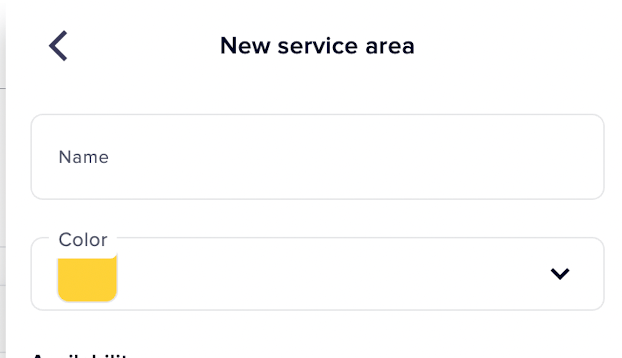
- Select +Create Service Area
- Enter a Name for the area
- Select a Color for this zone.
- Add Availability - This helps with more efficient routing by keeping your scheduled appointments within each area on specific days/times.
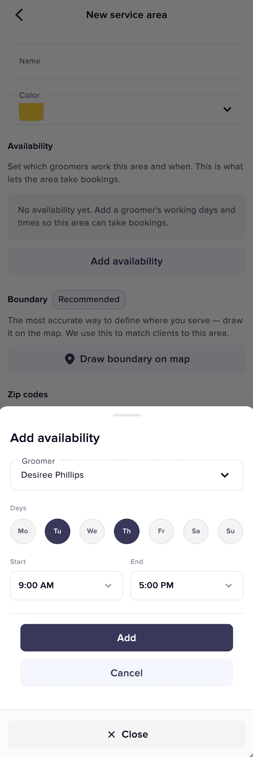
- Edit Boundary on Map - Create the outline of the area you are creating, just like you did with the Coverage area. Tap any 3 points to begin. You will do this for as many Service Areas you have.
When a Pet Parent requests an appointment online, only the days you are scheduled to be in their service area will appear as available. This makes booking easier and saves time by automatically displaying the dates that work for your route.
Good to Know:
- Addresses matter: Mobile setup uses each pet parent's address to work out which area they're in, so keep addresses complete and correct.