![iTunesArtwork@2x.png]](https://help.groomer.io/hs-fs/hubfs/iTunesArtwork@2x.png?height=50&name=iTunesArtwork@2x.png)
Scheduling new customers from the calendar screen using BULK Scheduling:
- Navigate to the calendar screen and tap on the day you would like to schedule
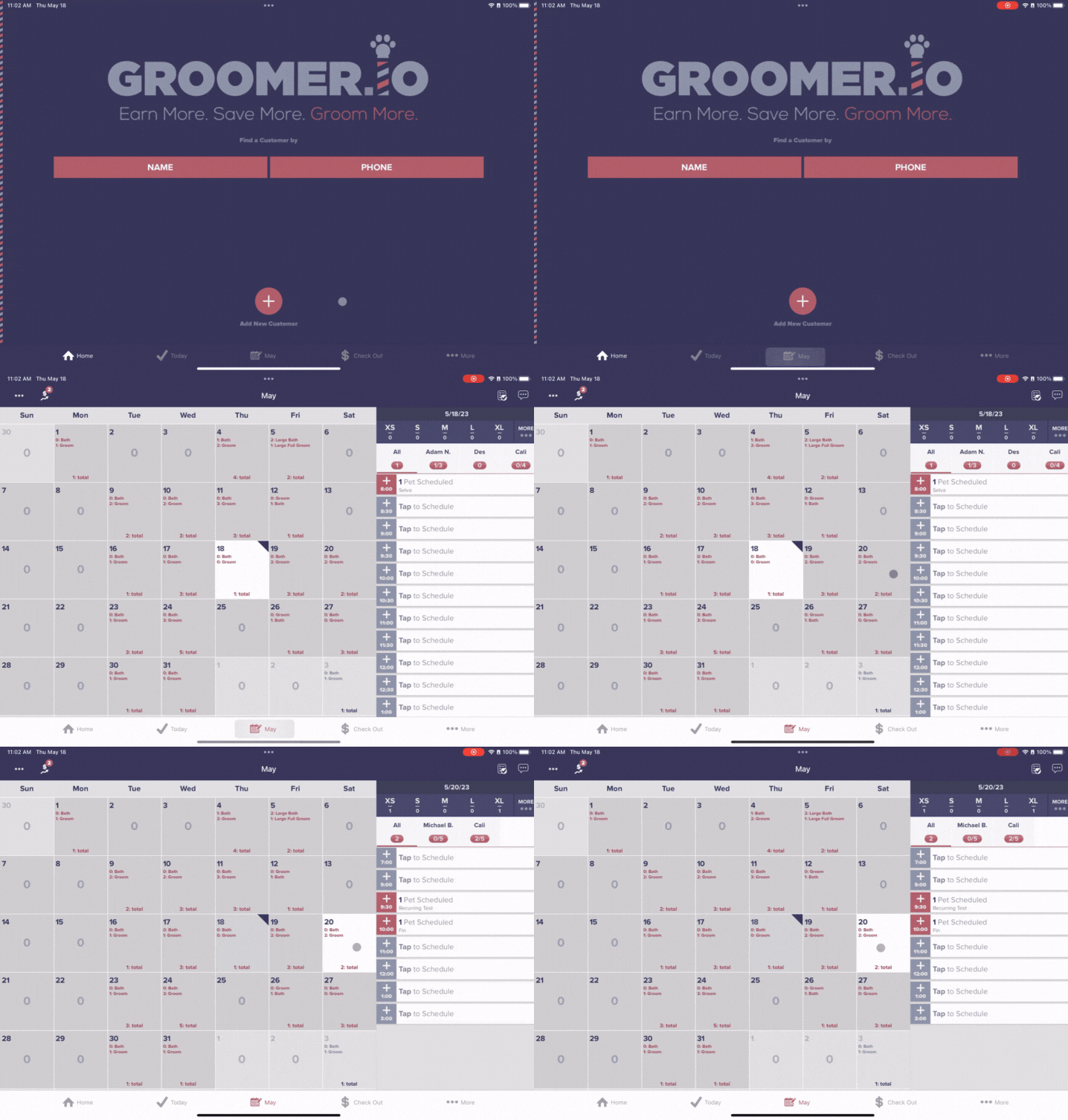
- Select which groomer you would like to schedule an appointment under
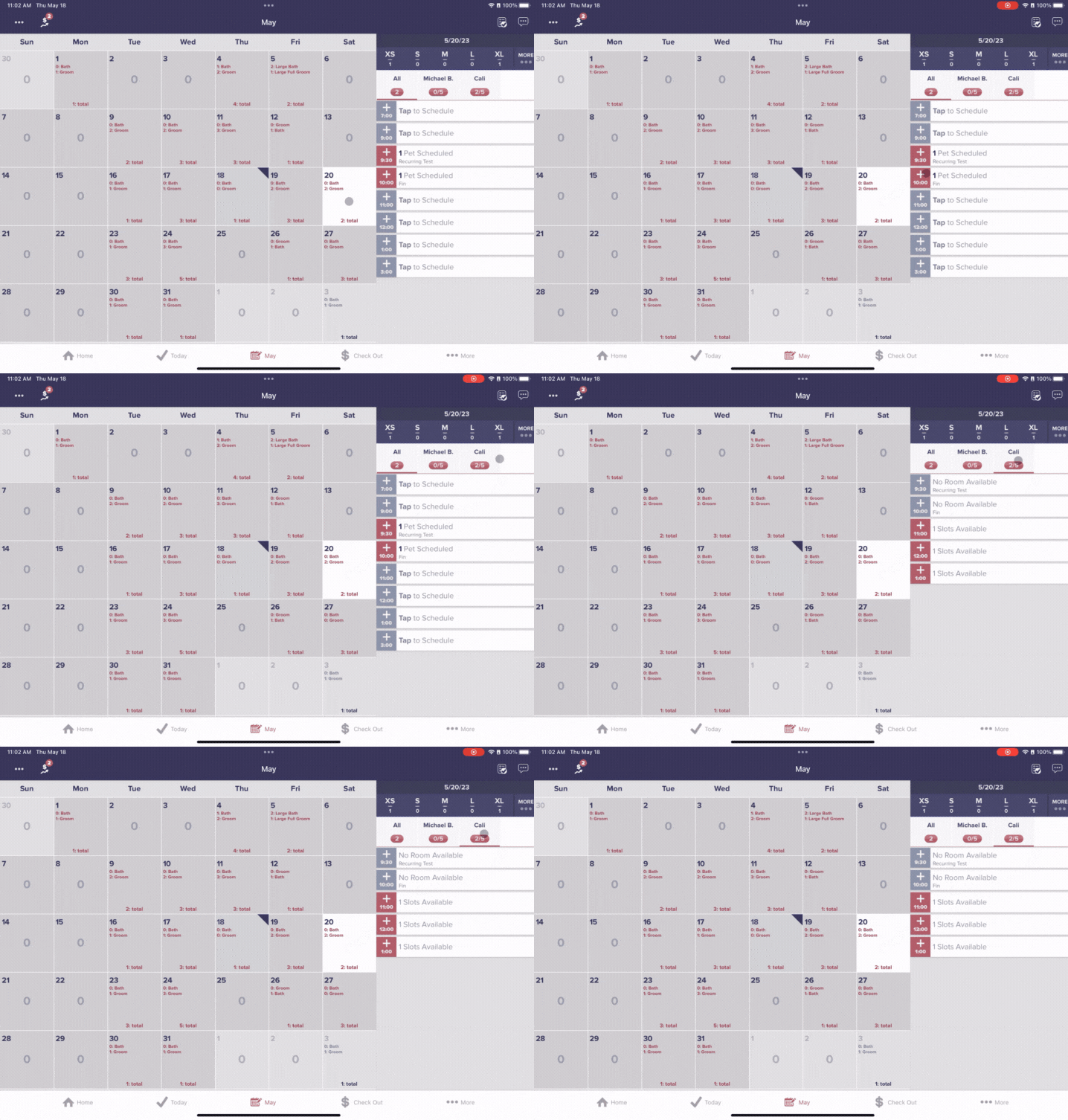
- Tap on the available slot time and select "Create New Customer"
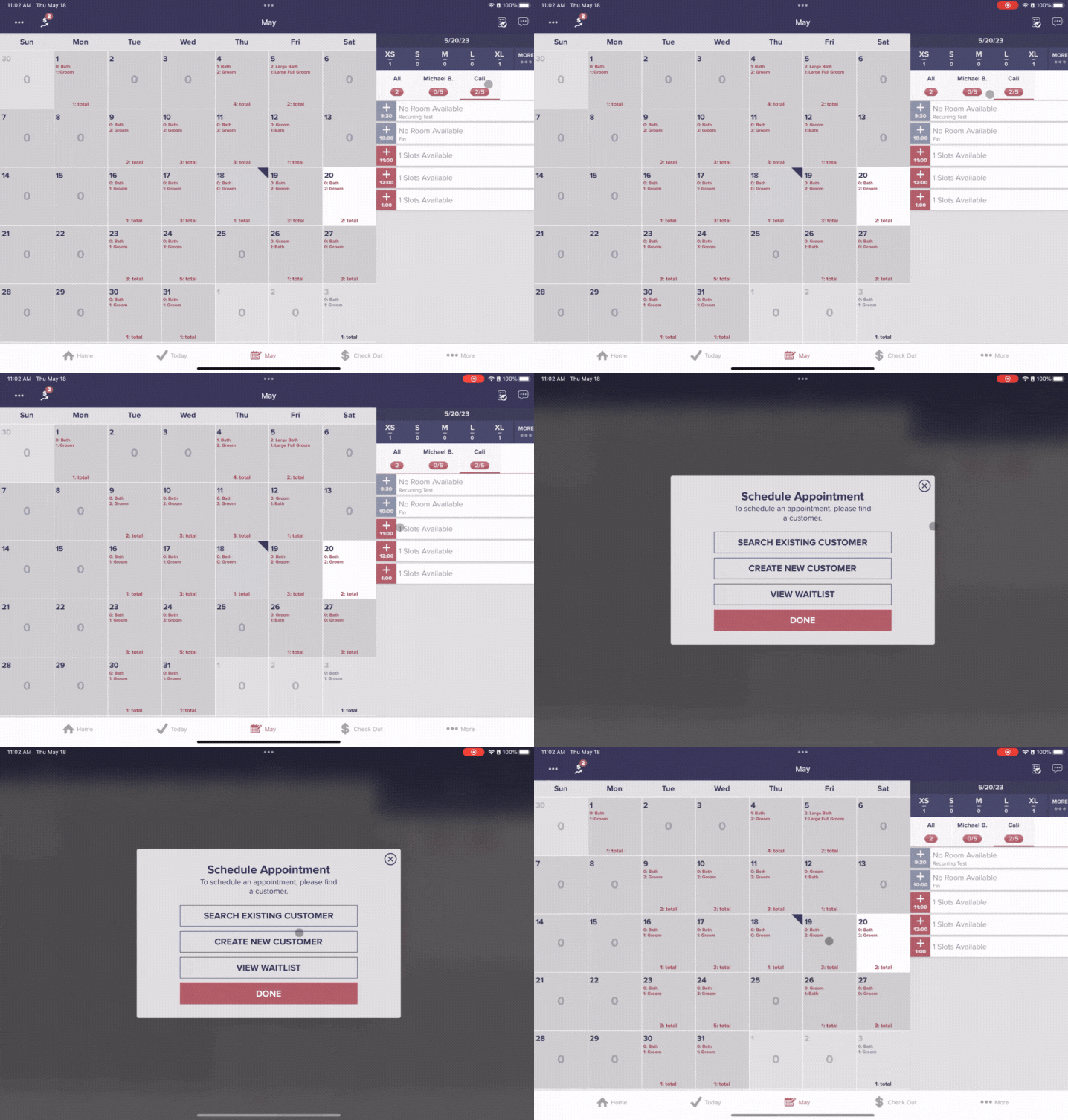
- Enter the customer's name (first name, first and last name, or first name last initial) followed by a comma, then enter all pets separated by commas. Once you have added all pets, select "Done"
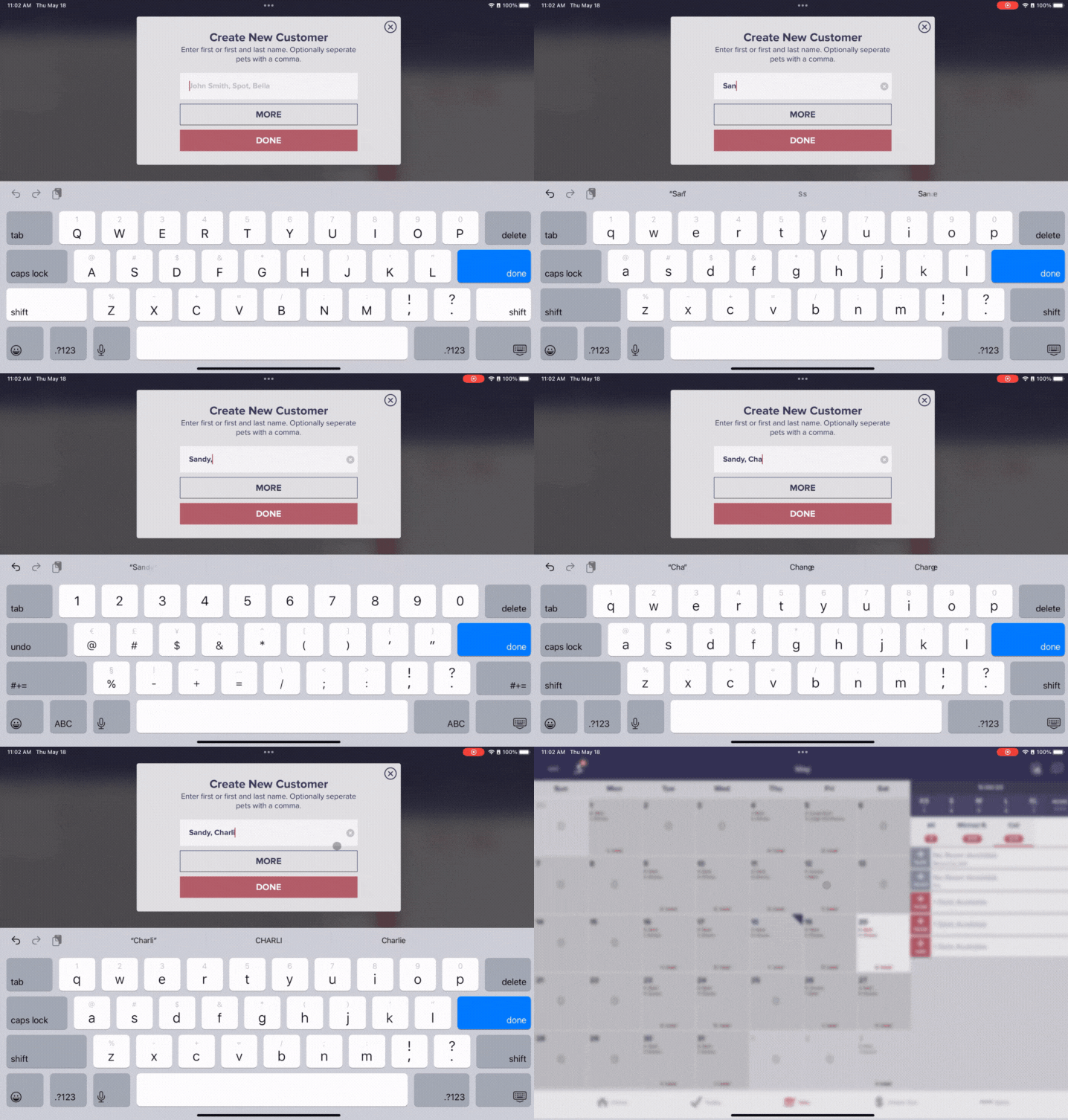
- Select "Go"
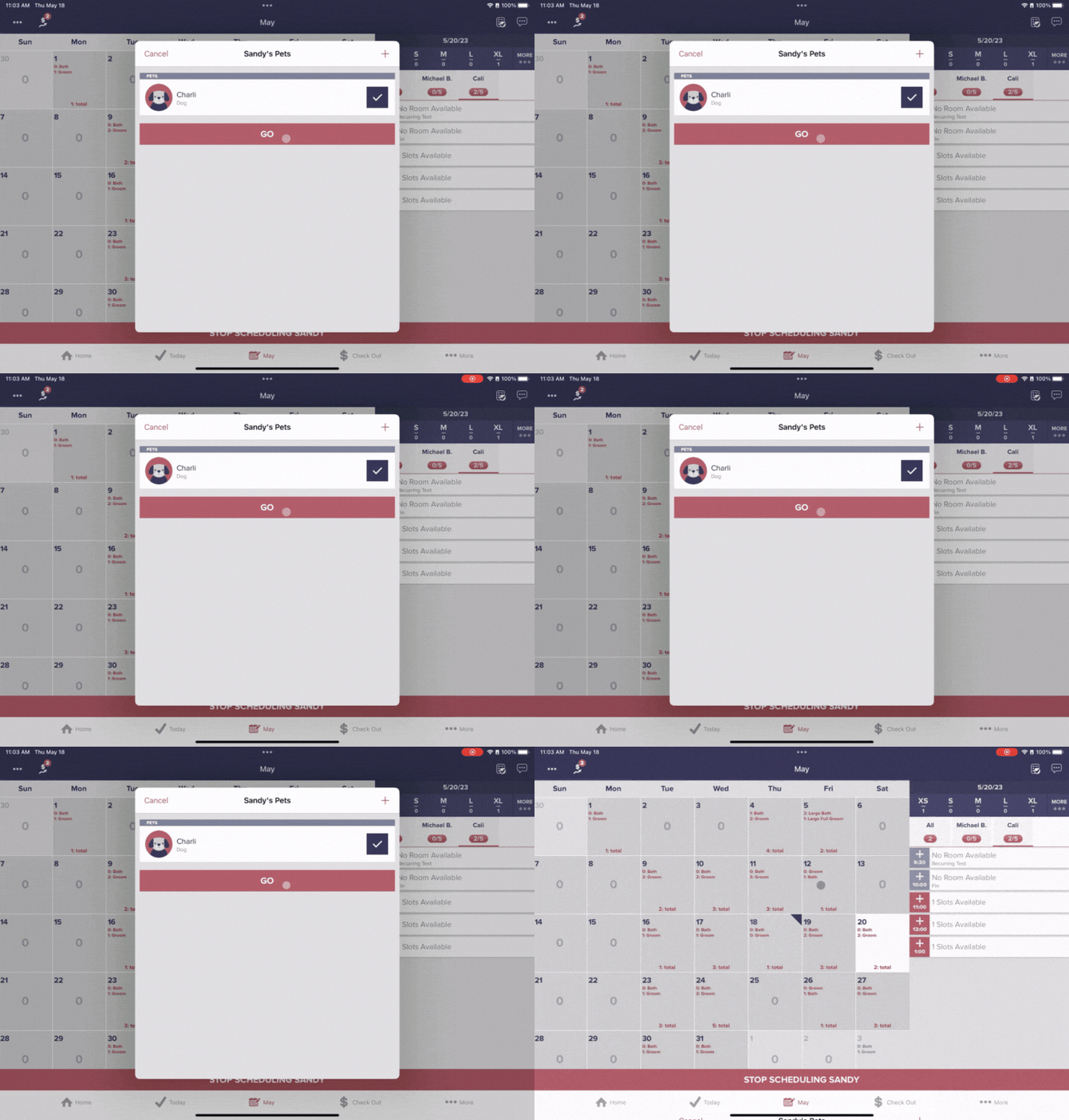
- Assign this dog a breed by tapping on "Dog" underneath the dog's name and selecting the breed
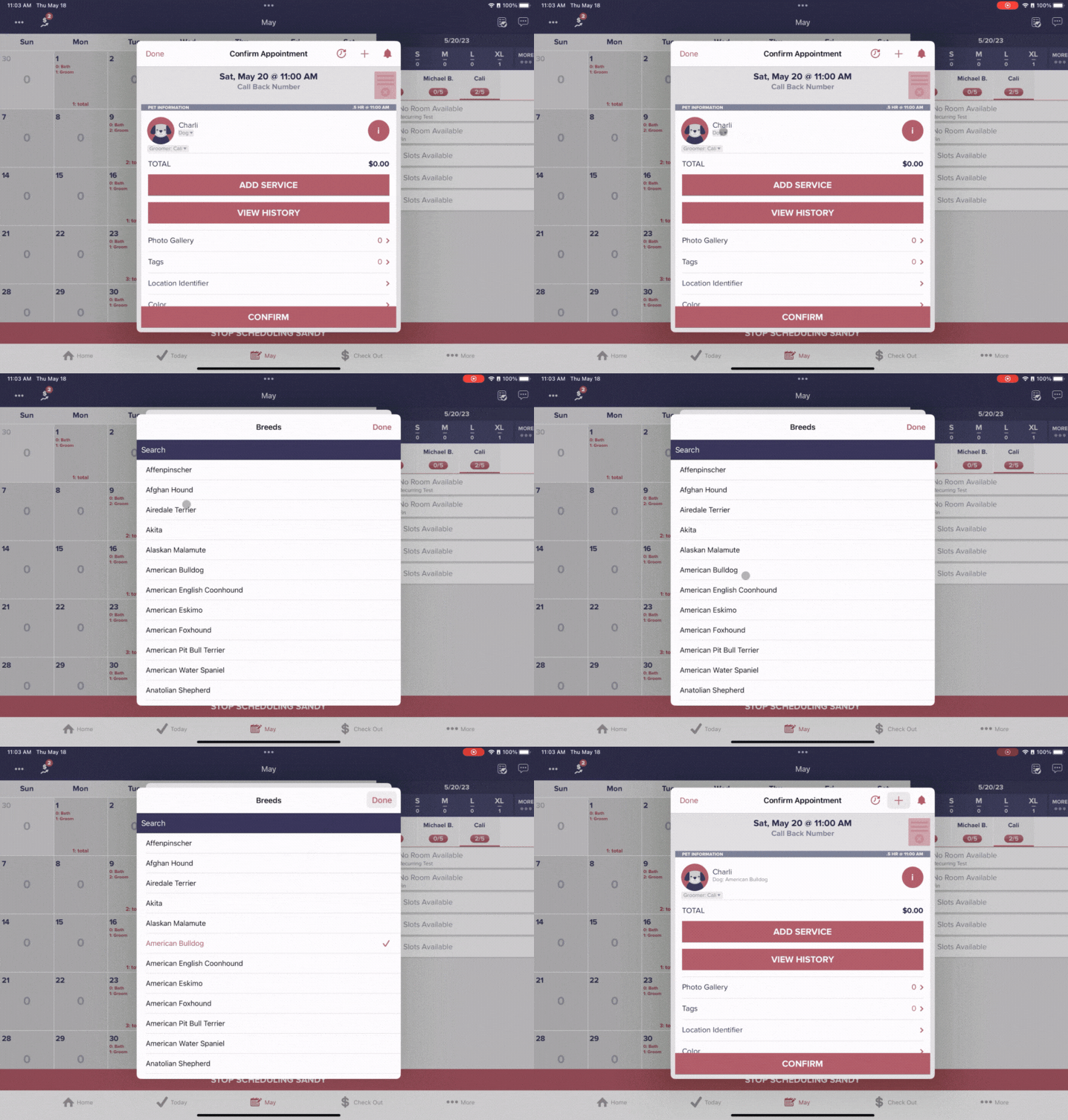
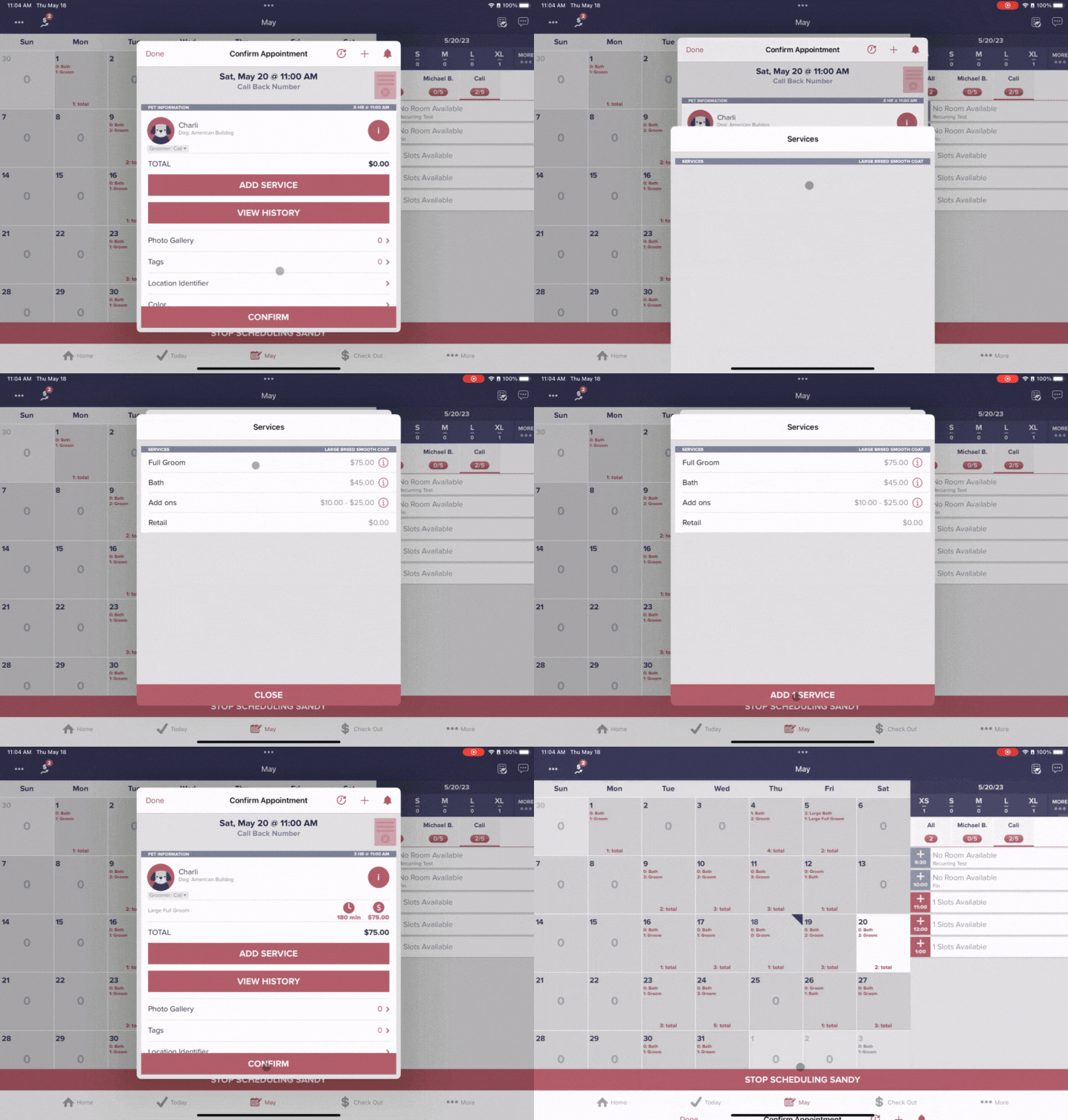
- Select "Add Service" to pick the service(s) for the appointment and tap "Add 1 Service" to save this service and select "Confirm"
- Tap "Add Phone" to add a number for schedule confirmations, appointment reminders, and ready-for-pick-up calls and texts for this customer and select which type of phone number you will be adding in order to add the customer phone number, then select "Done"
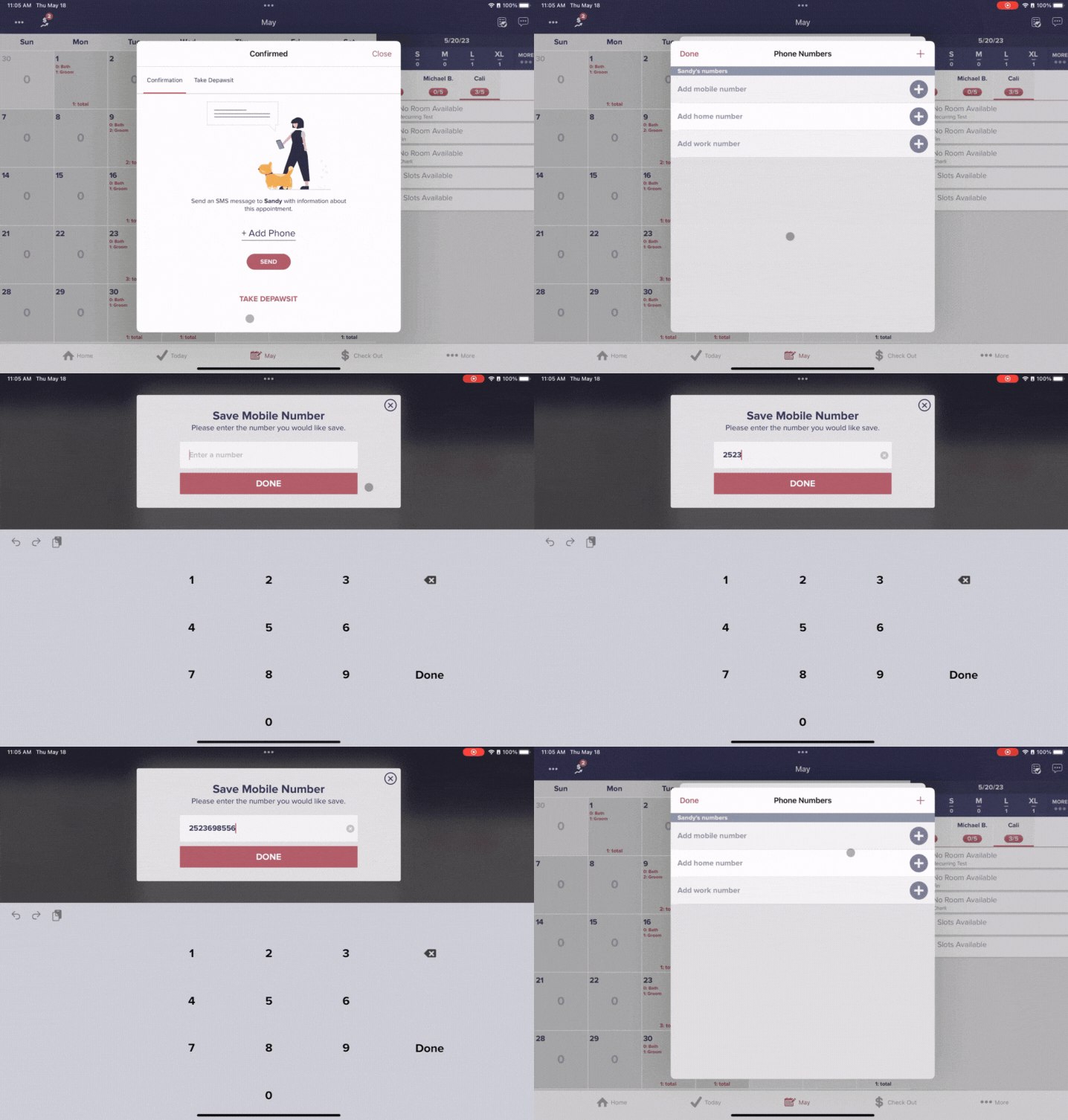
- Select "Send" to send the customer their schedule confirmation text message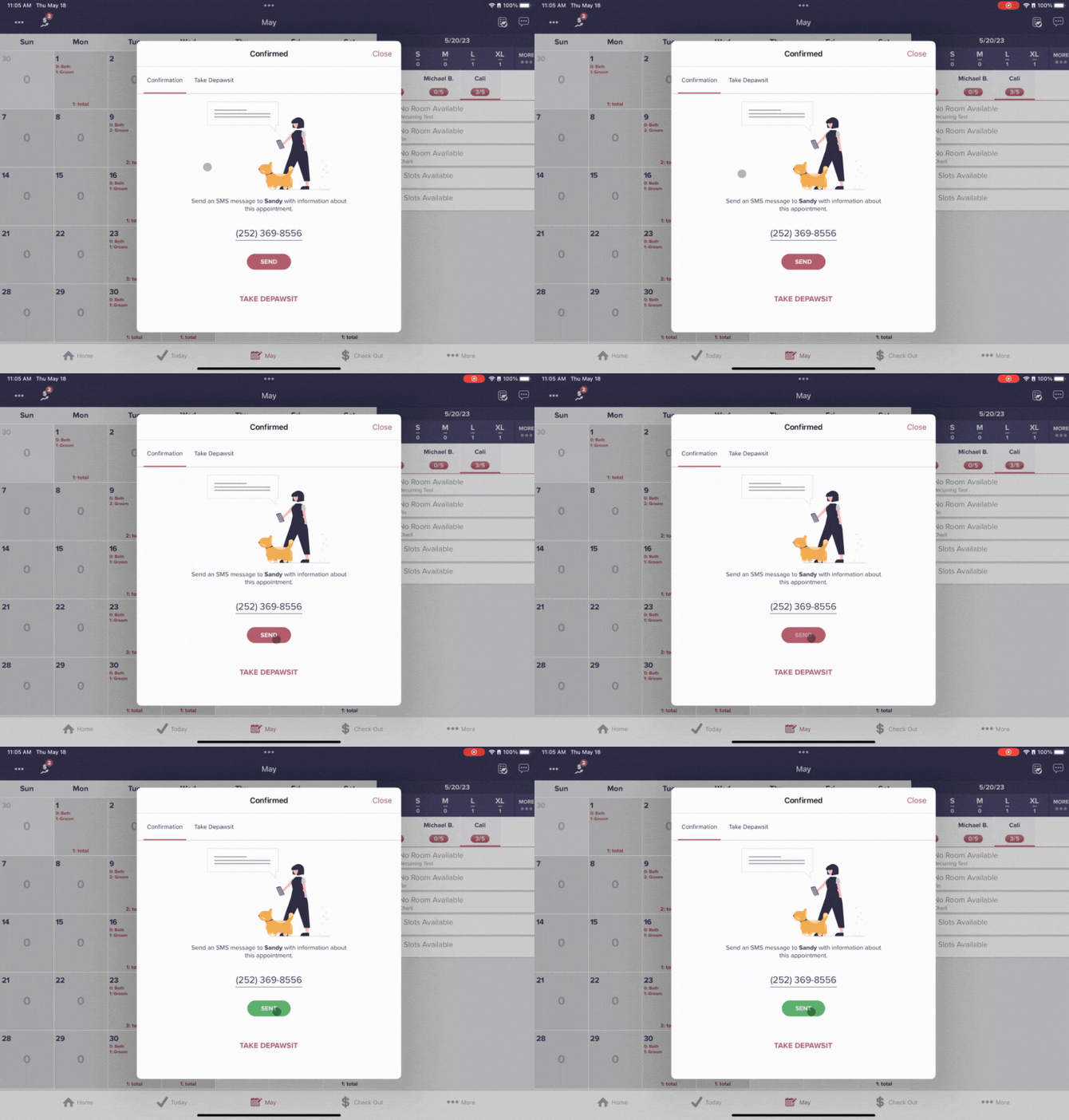
Scheduling new customers from the calendar screen using BLOCK Scheduling:
- Navigate to the calendar screen and select the day you would like to schedule to pet
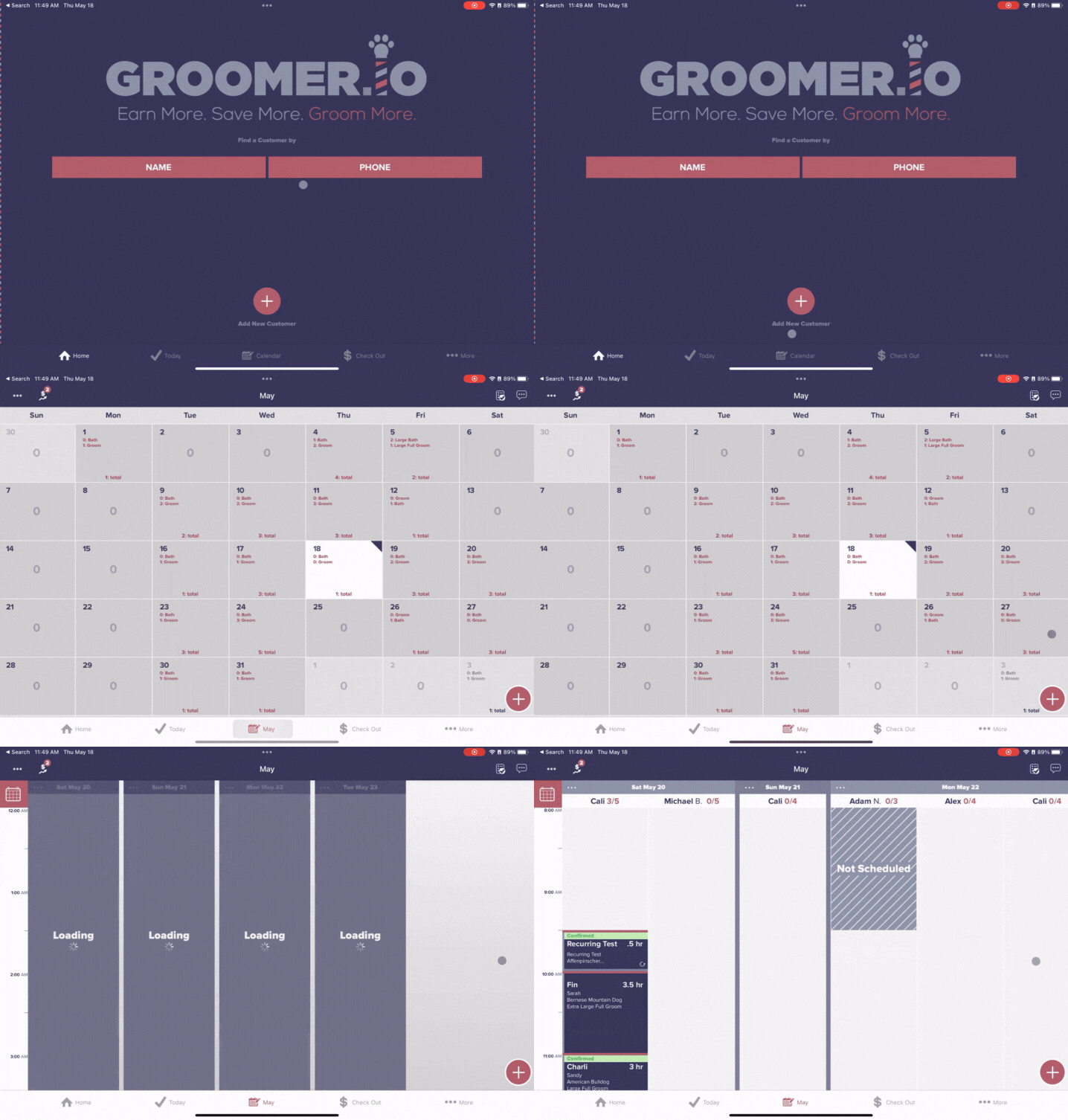
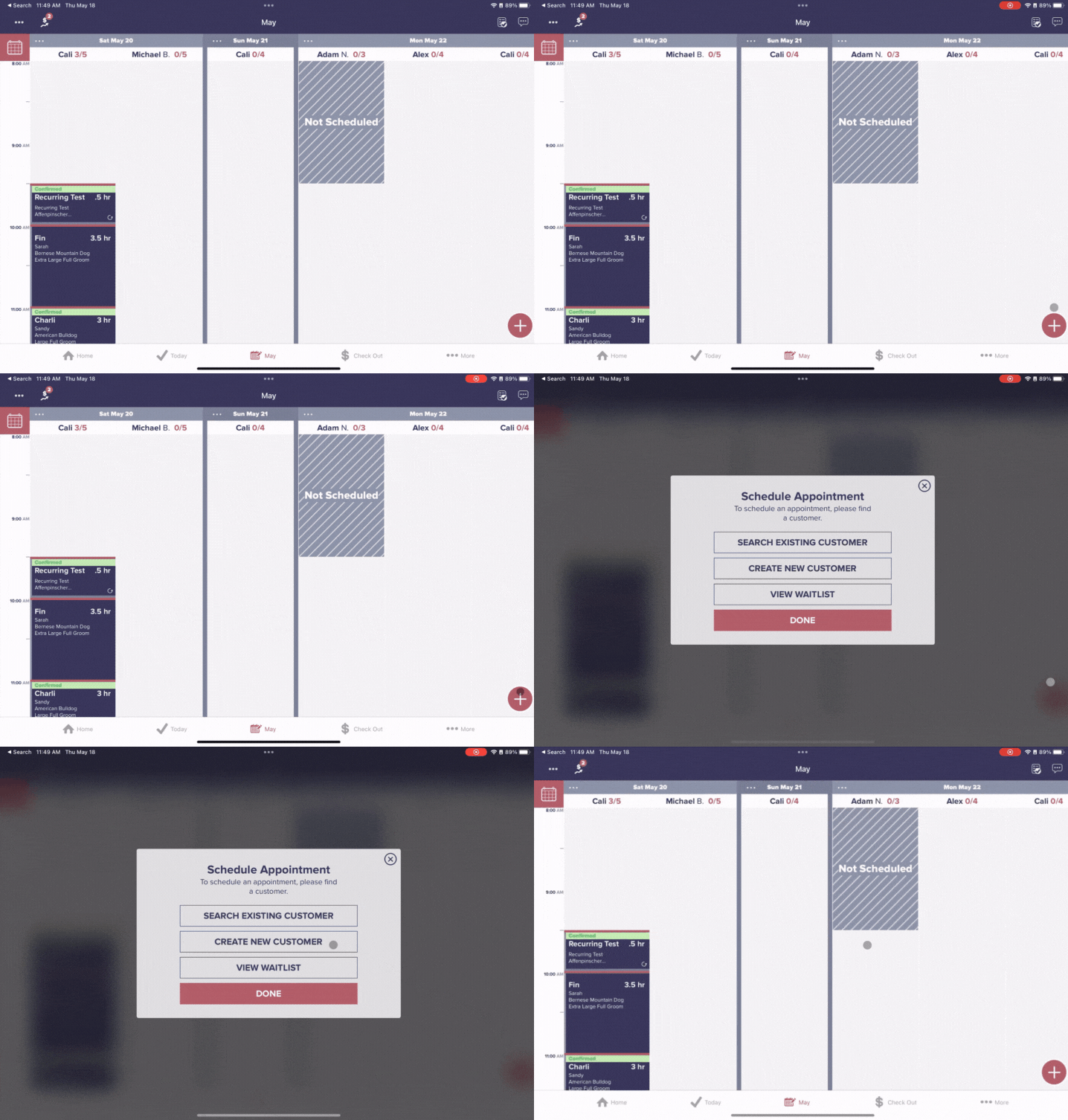
- Tap on the "+" in the bottom right-hand corner and select "Create New Customer"
- Enter the customer's name (first name, first and last name, or first name last initial) followed by a comma, then enter all pets separated by commas. Once you have added all pets, select "Done"
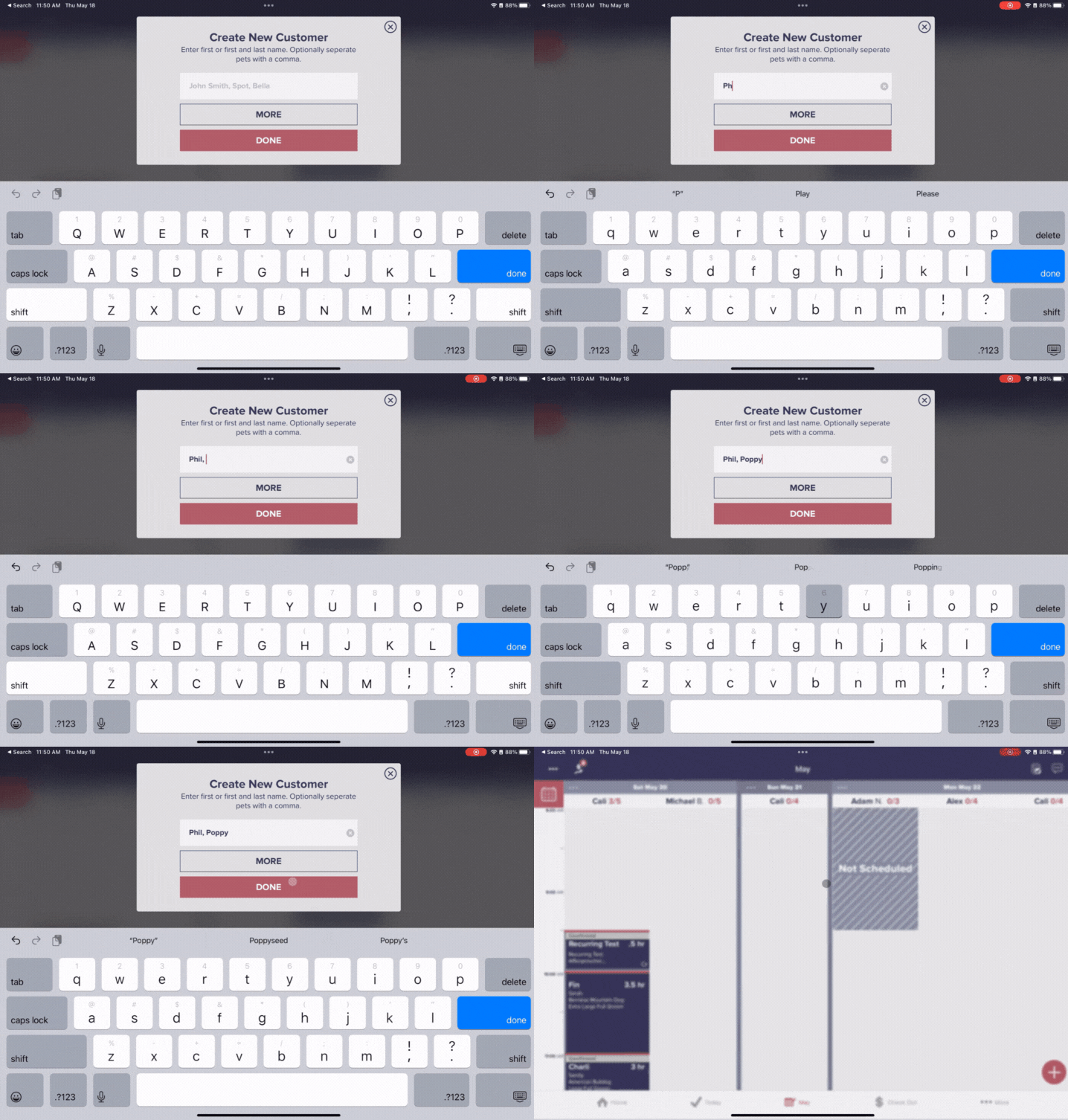
- Select "Go"
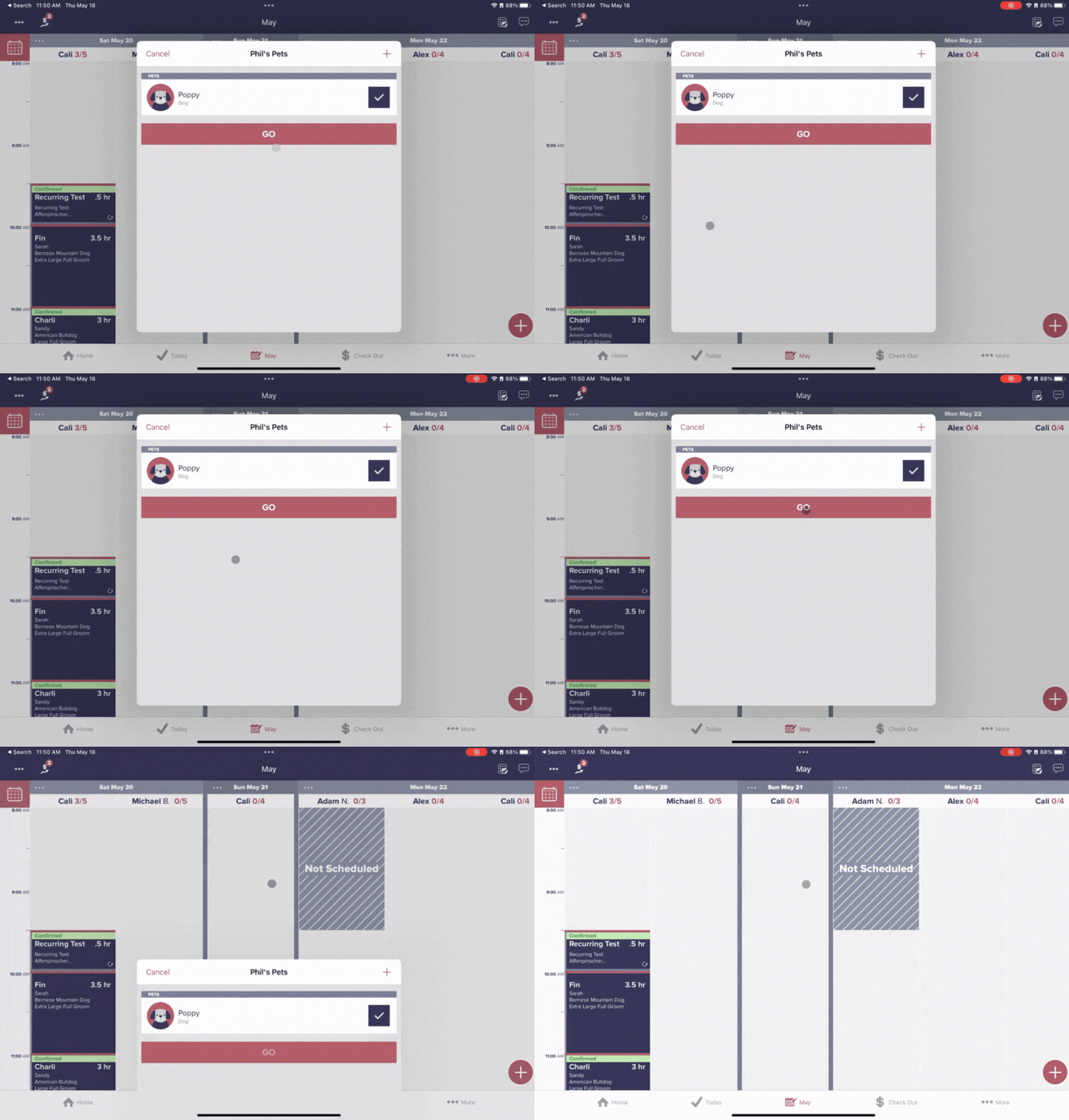
- Assign this dog a breed by tapping on "Dog" underneath the dog's name and selecting the dog's breed
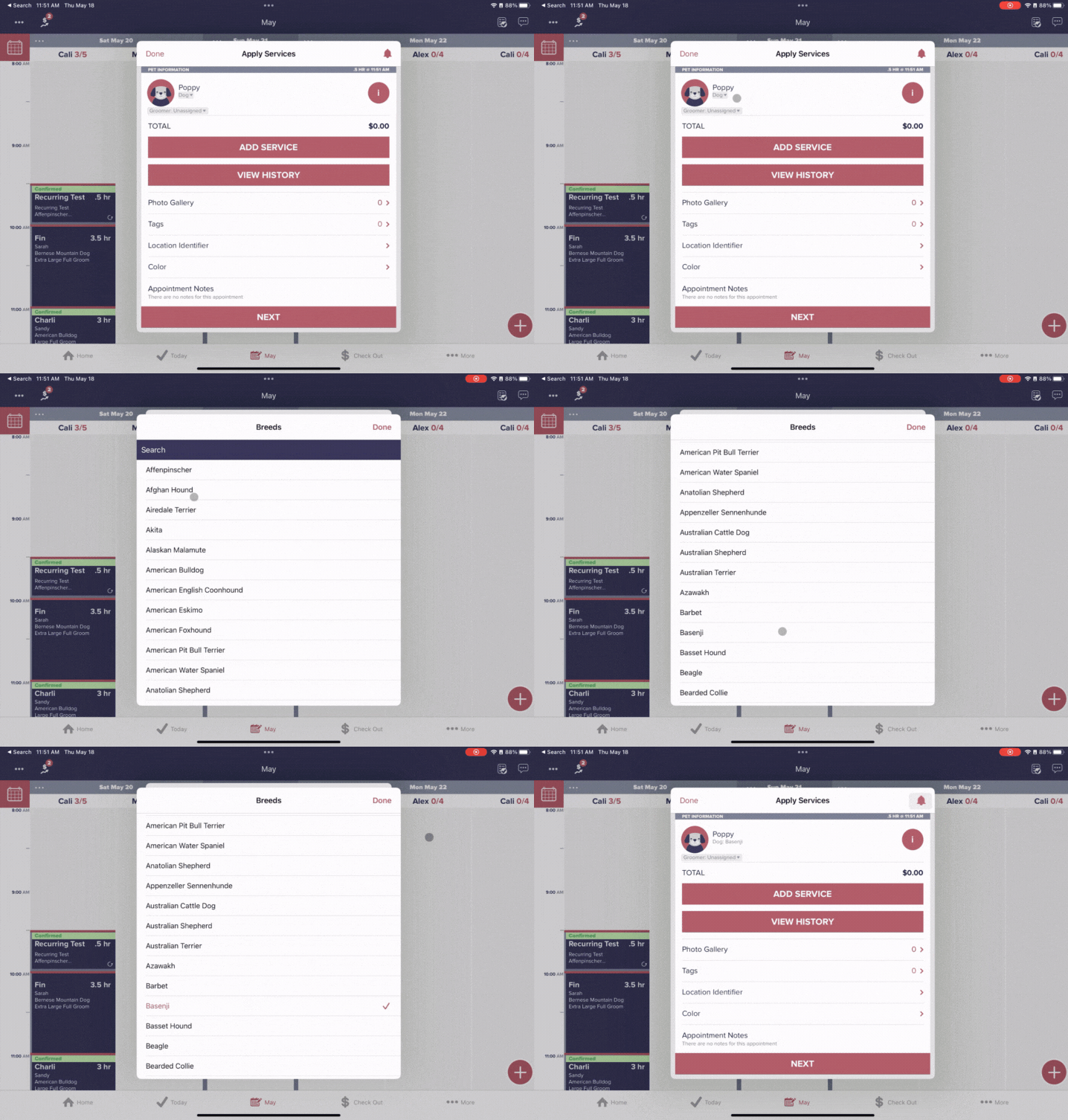
- Select "Add Service" to pick the service(s) for the appointment and tap "Add 1 Service" to save this service before selecting "Next"
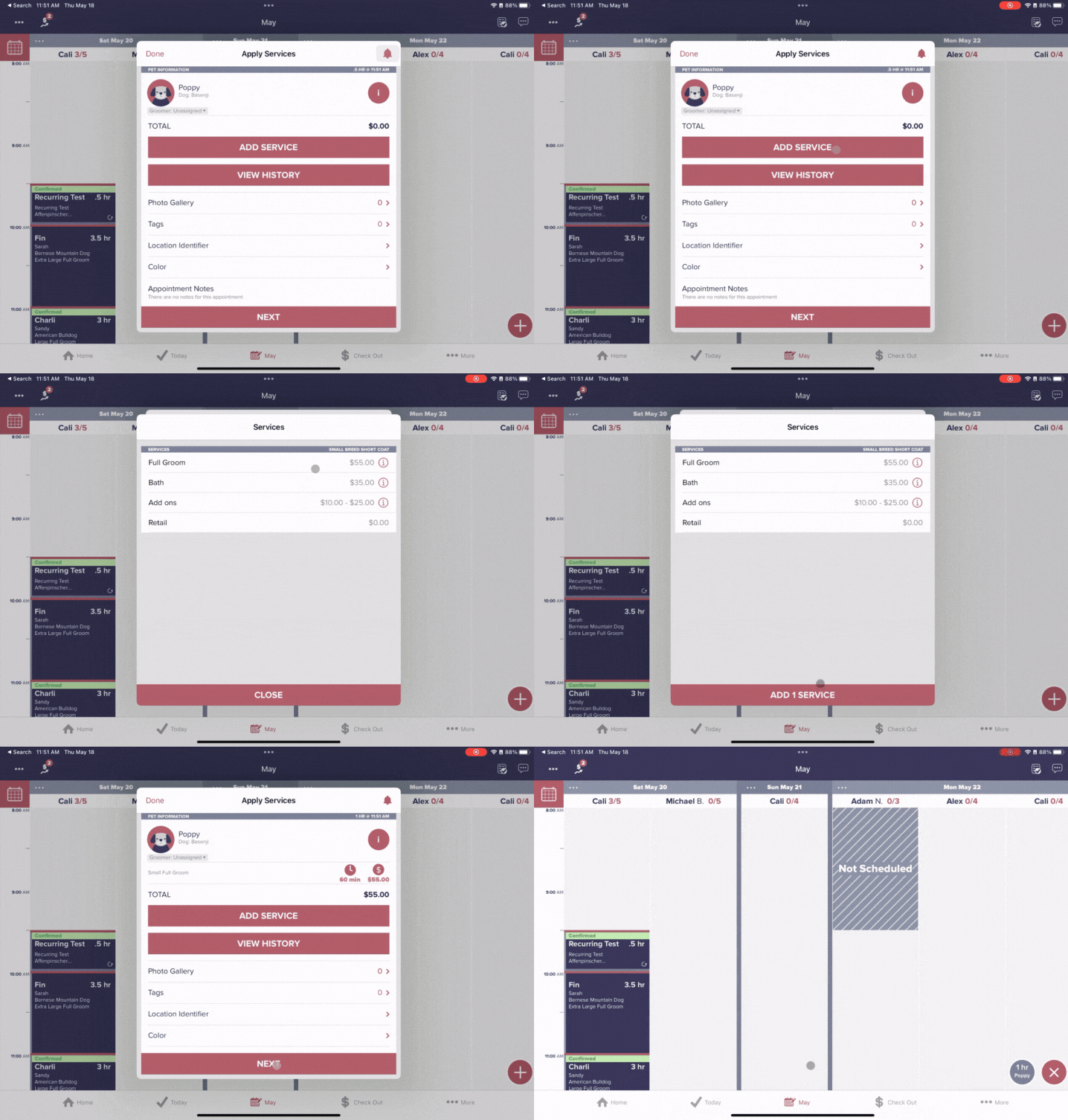
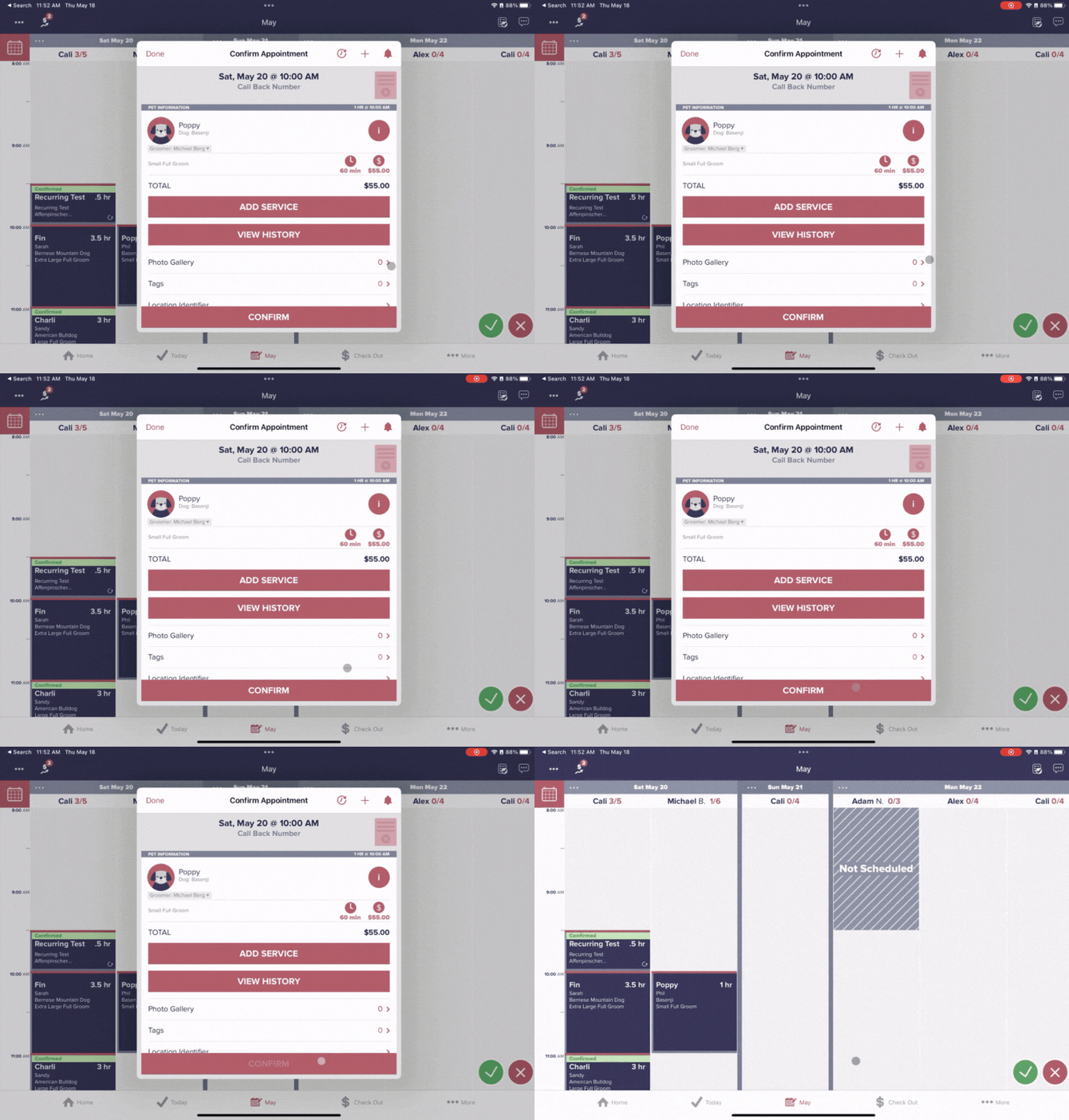
-Tap on the appointment time under your desired groomer (you can also drag and drop) and select the green check mark from the bottom right-hand corner
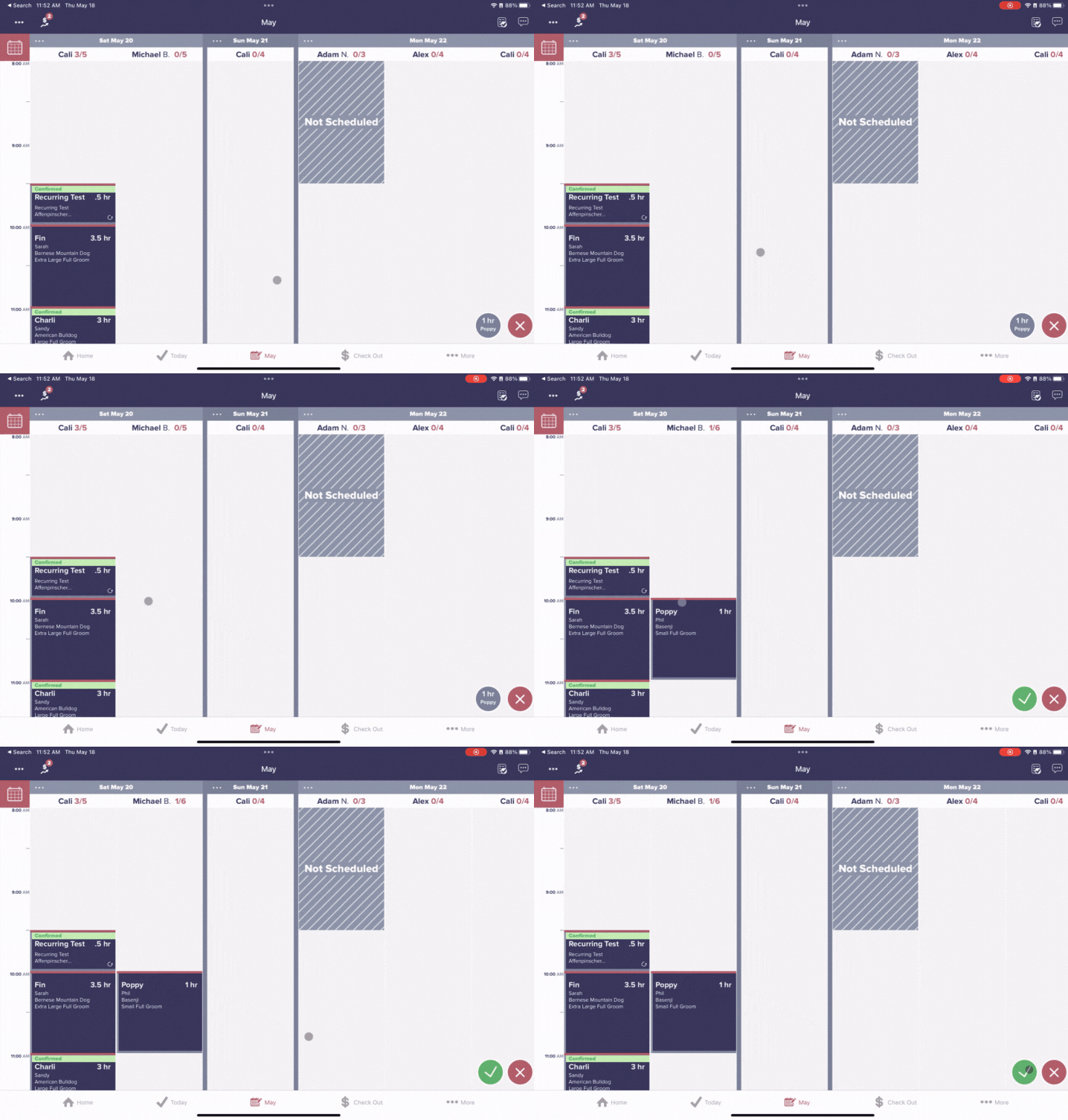
- Select "Confirm"
- Tap "Add Phone" to add a number for schedule confirmations, appointment reminders, and ready-for-pick-up calls and texts for this customer and select which type of phone number you will be adding in order to add the customer phone number, then select "Done"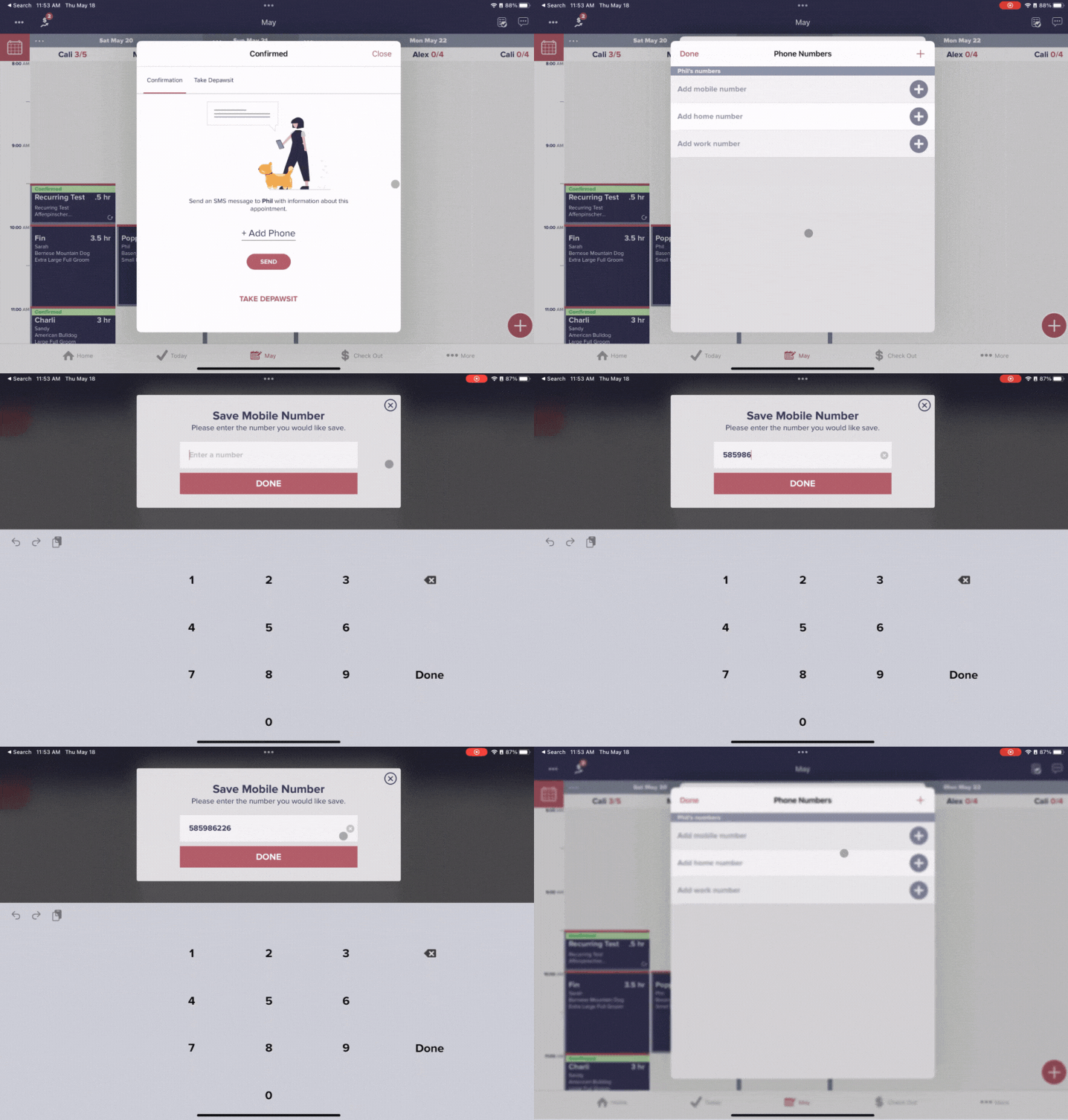
- Select "Send" to send the customer their schedule confirmation text message
Scheduling existing customers from the calendar screen using BULK scheduling:
- Navigate to the calendar screen and tap on the day you would like to schedule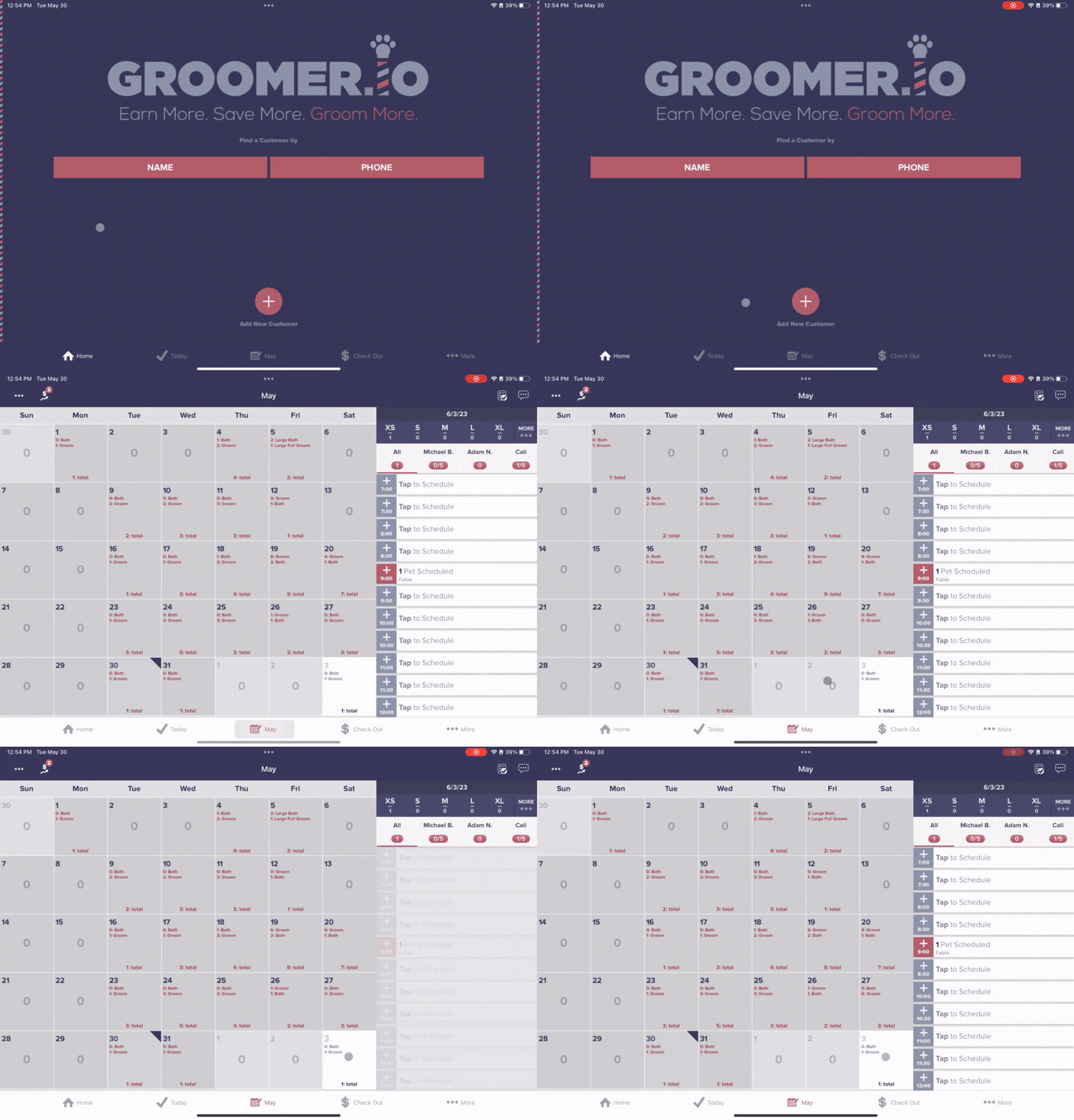
- Select which groomer you would like to schedule an appointment under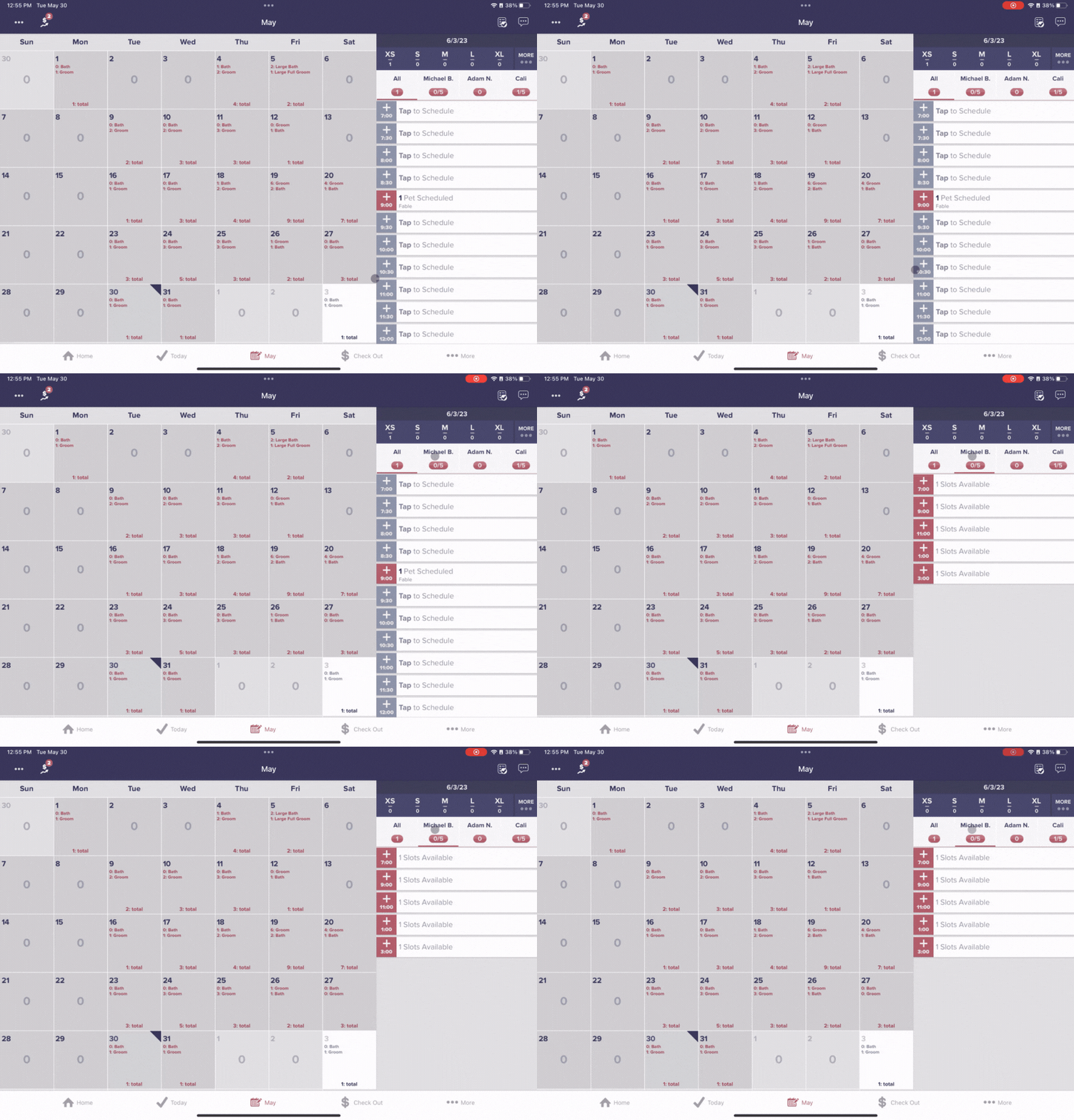
- Tap on the available slot time and select "Search Existing Customer"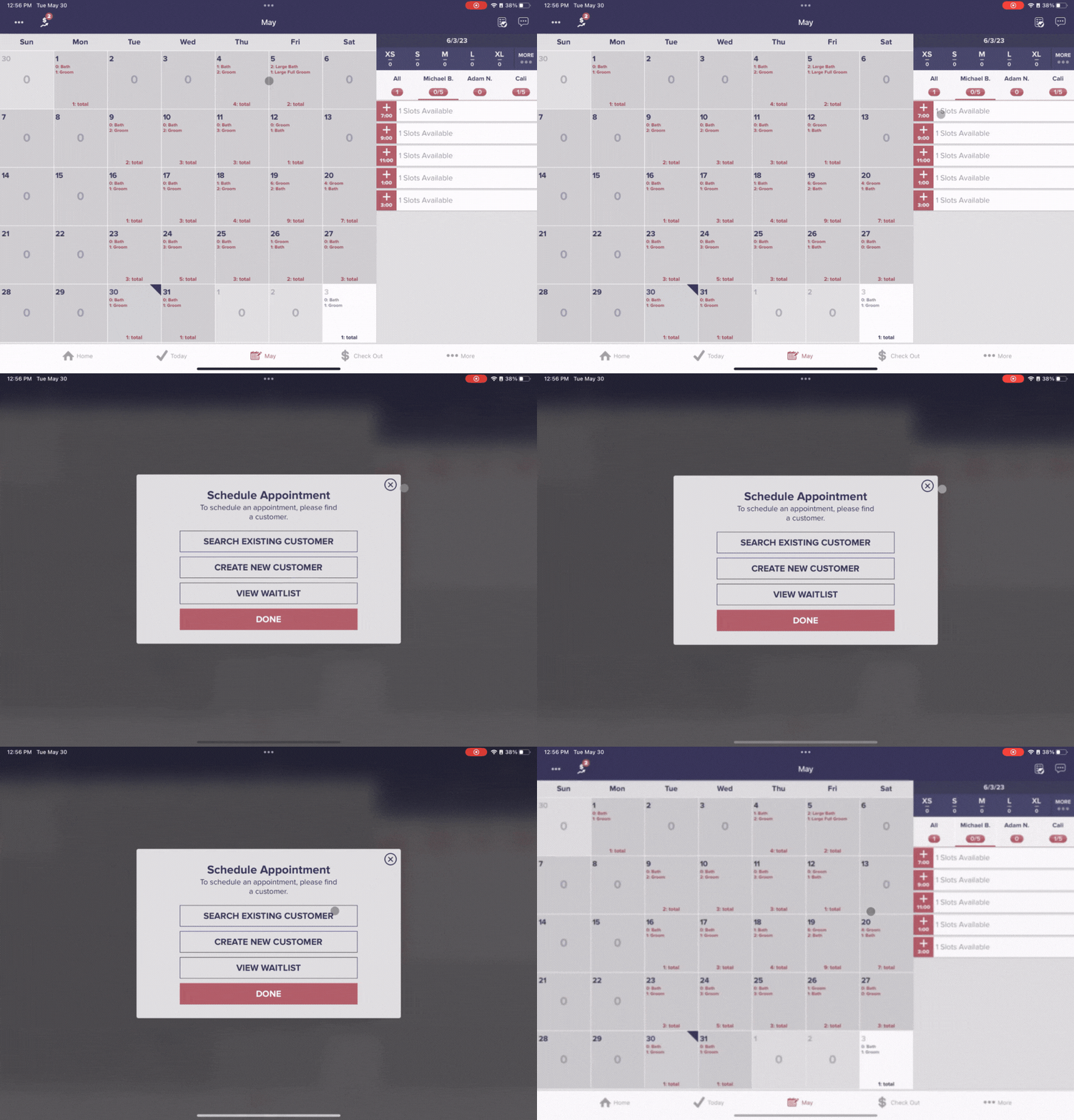
- Search for the customer by first name, last name, pets name, or phone number and tap on the desired customer 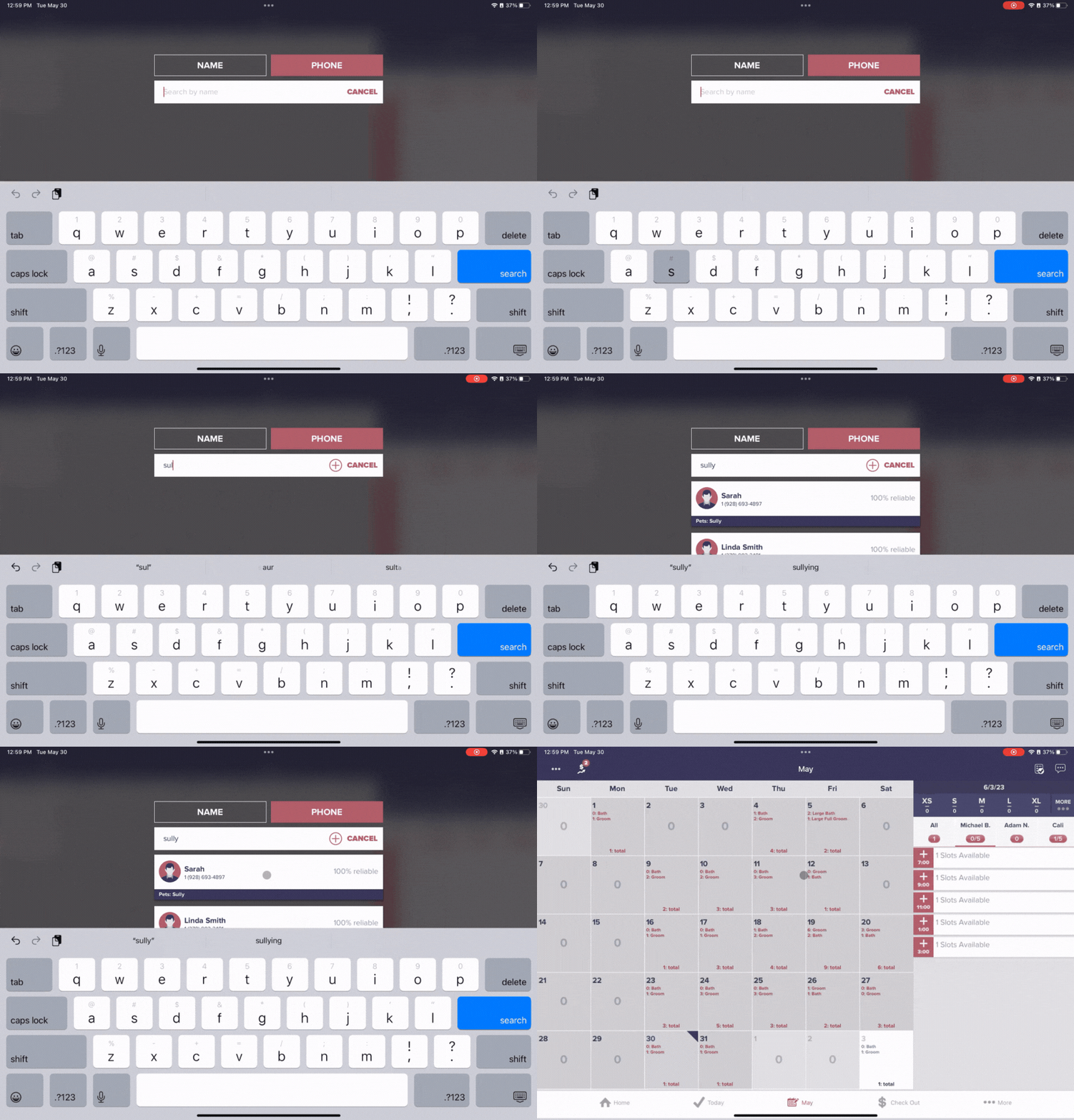
- Tap "GO"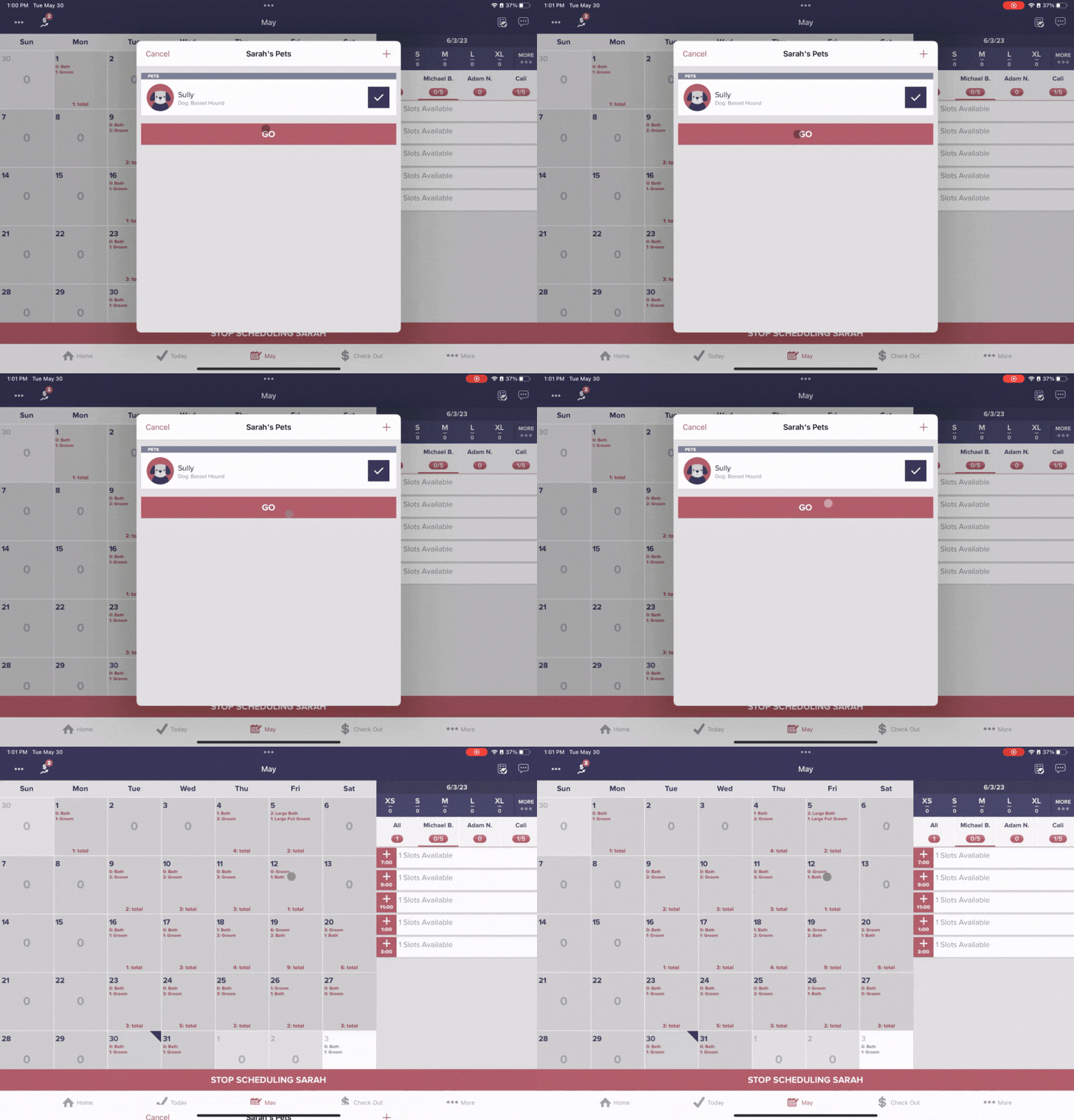
- Select "Add Service" to pick the service(s) for the appointment and tap "Add 1 Service" to save this service and select "Confirm"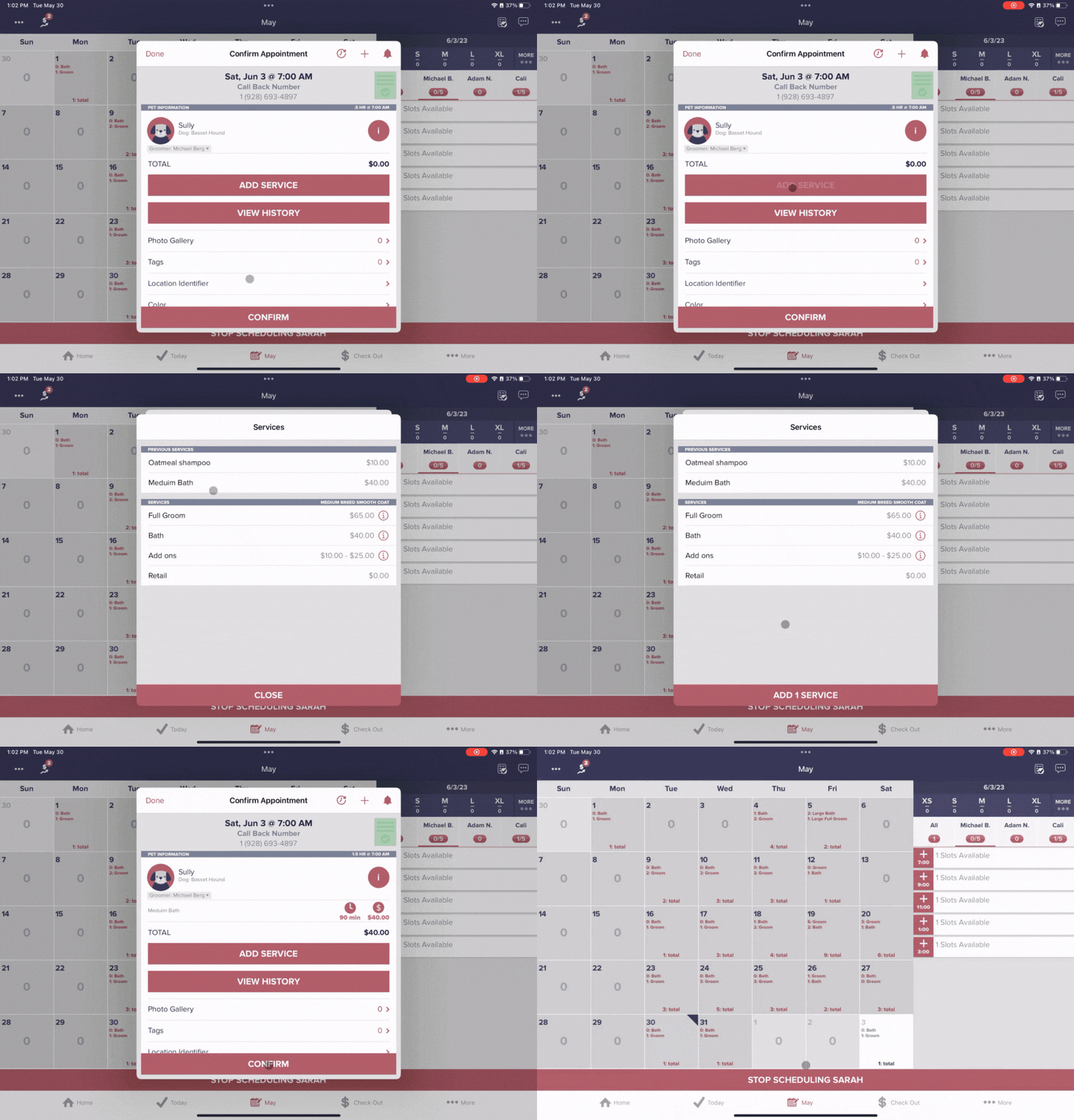
- Select "Send" to send the customer their schedule confirmation text message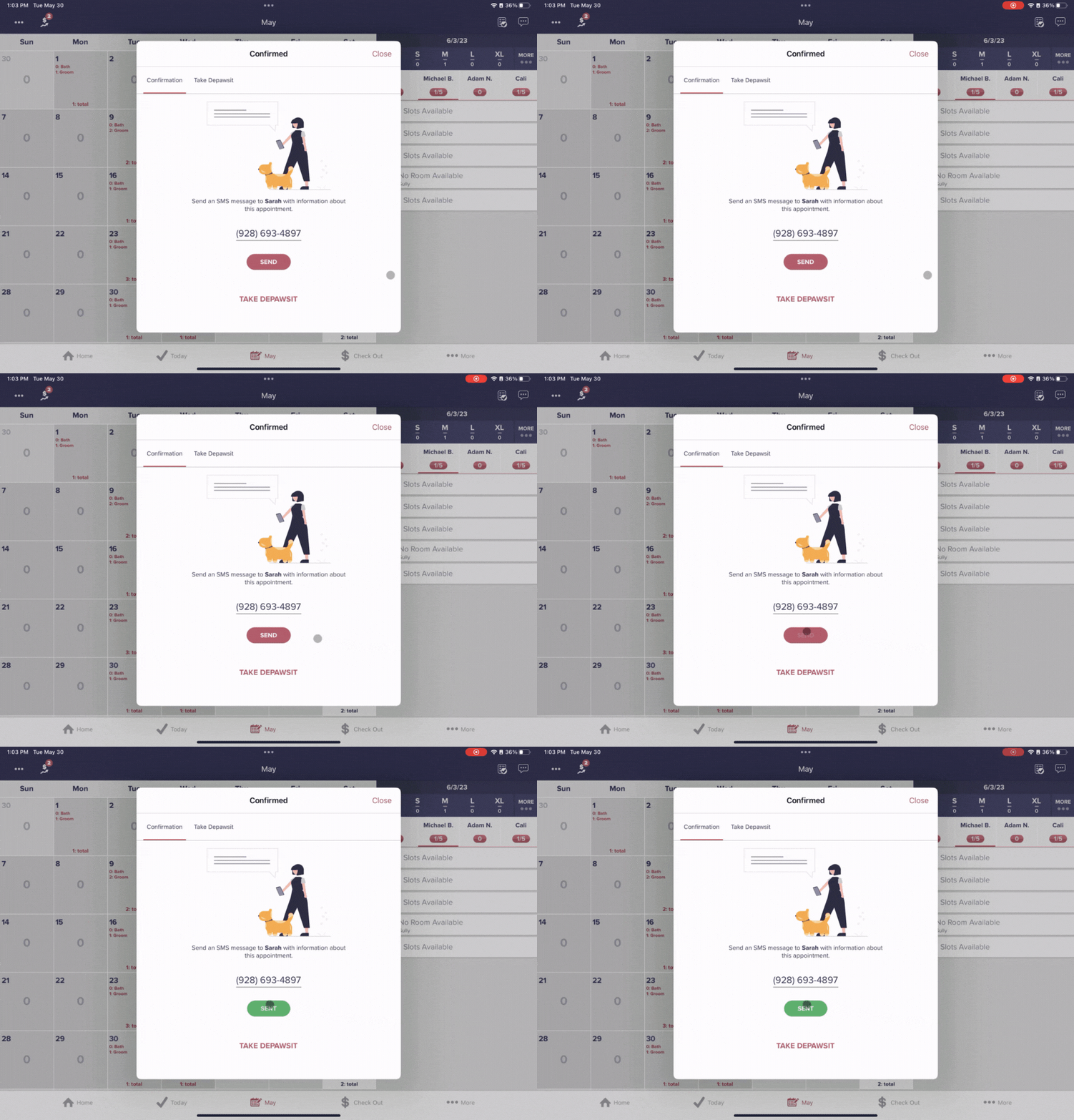
- Select the waffle grid from the top right-hand corner and select "Pets"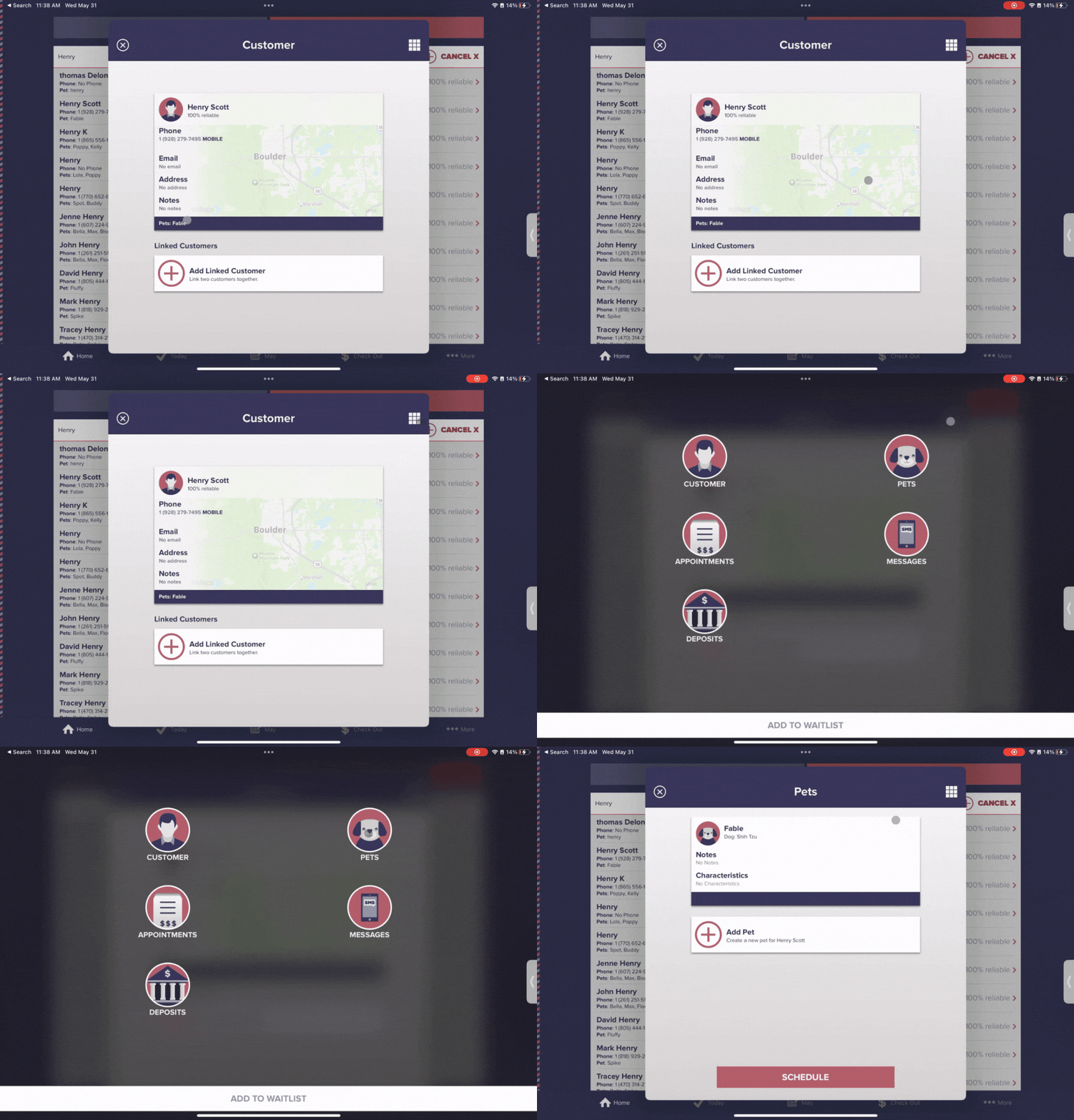
- Tap "Schedule" and select "Go"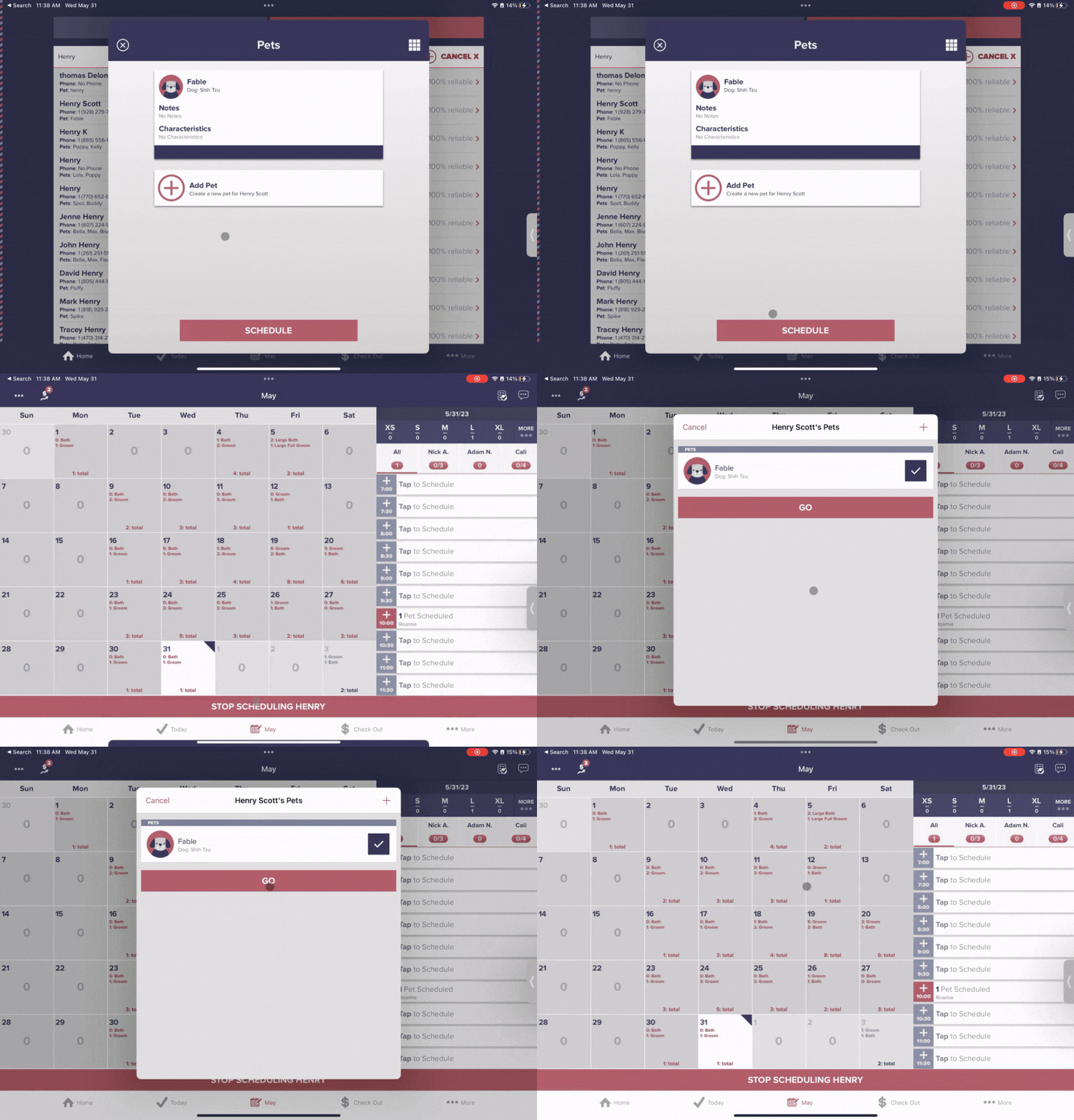
- Select "Add Service" to pick the service(s) for the appointment and tap "Add 1 Service" to save these services and select "Next"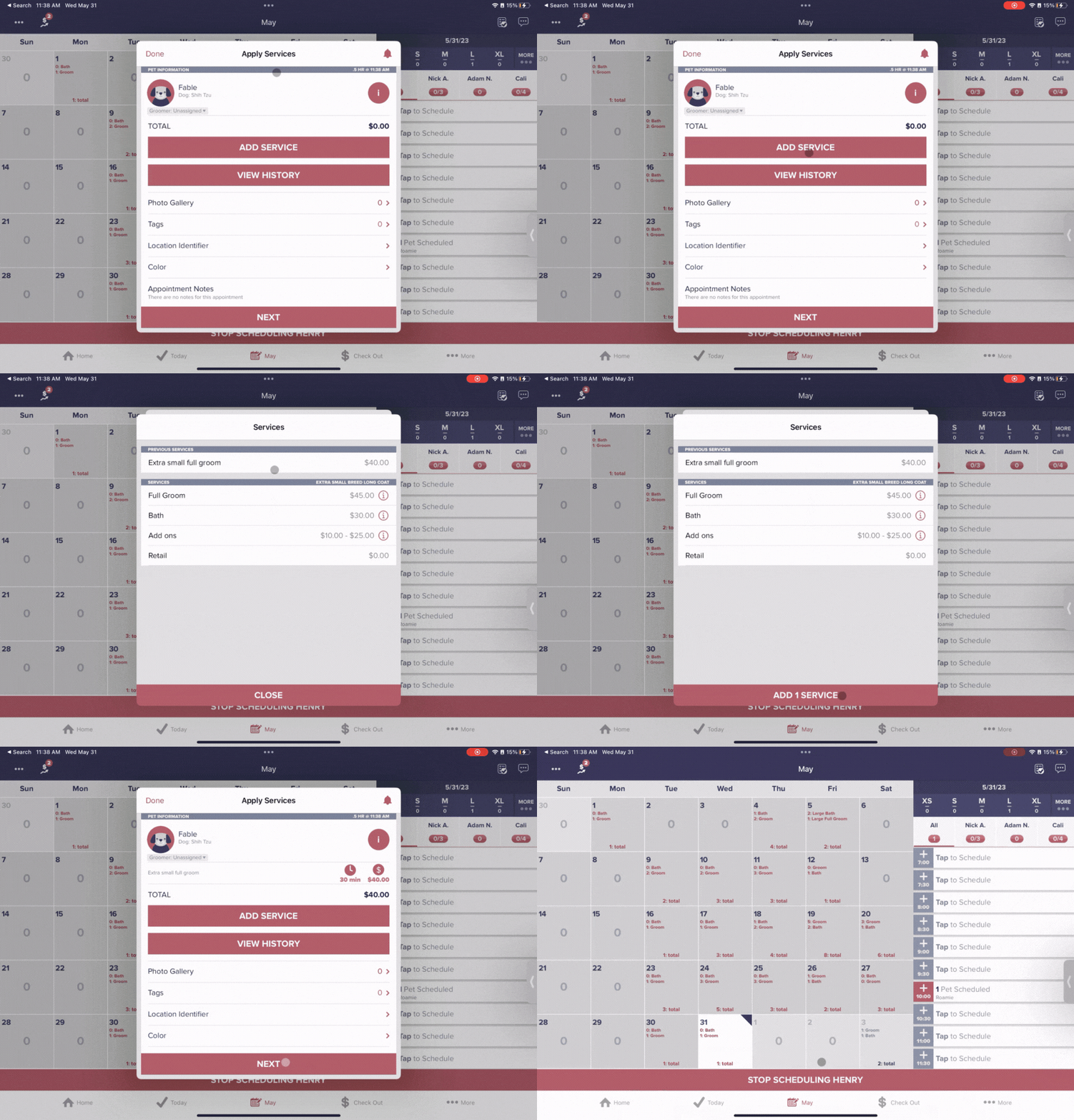
- Tap on the day you would like to schedule this pet and select the groomer you would like to schedule the appointment with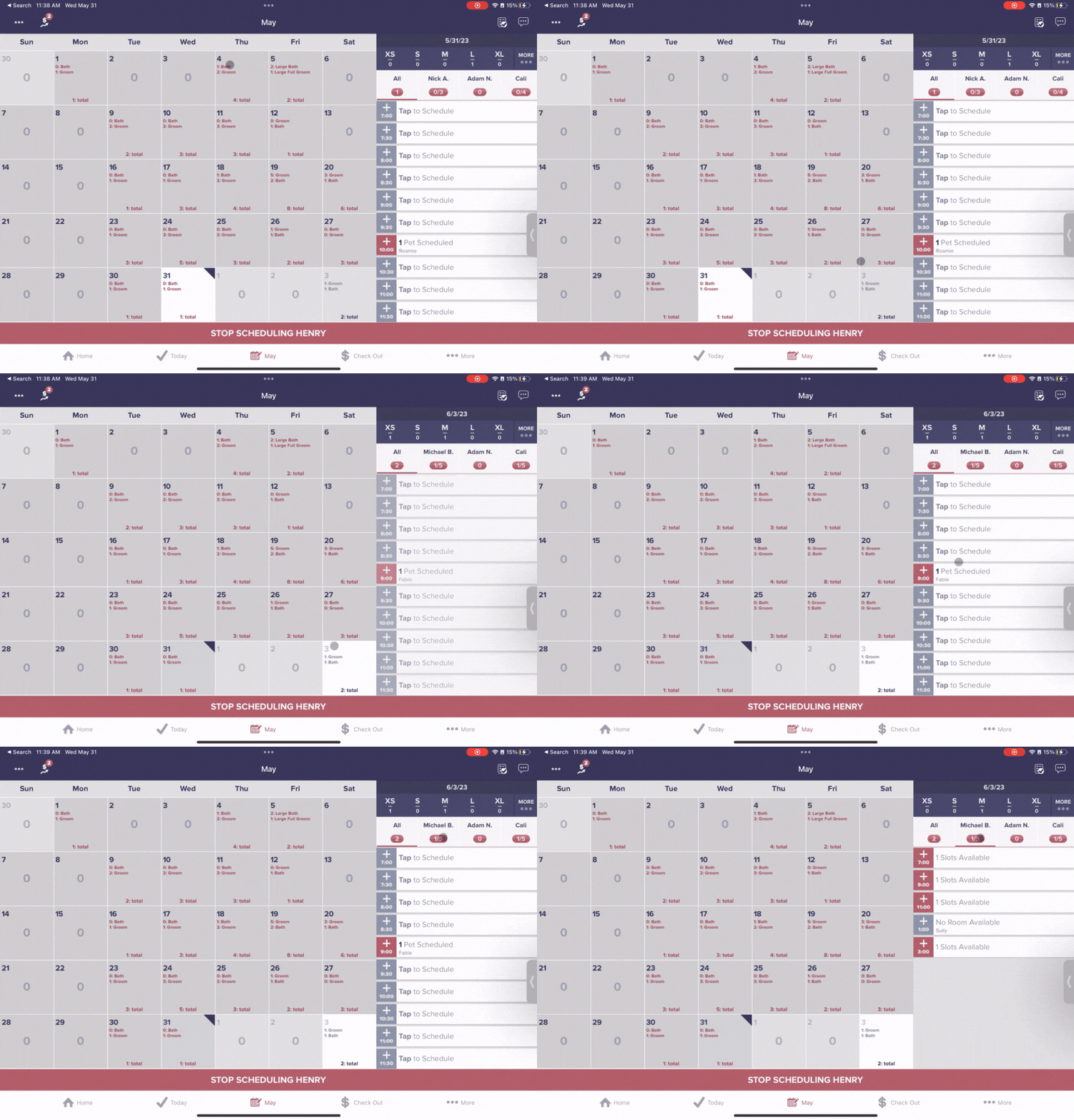
- Select an available time slot and tap "Confirm"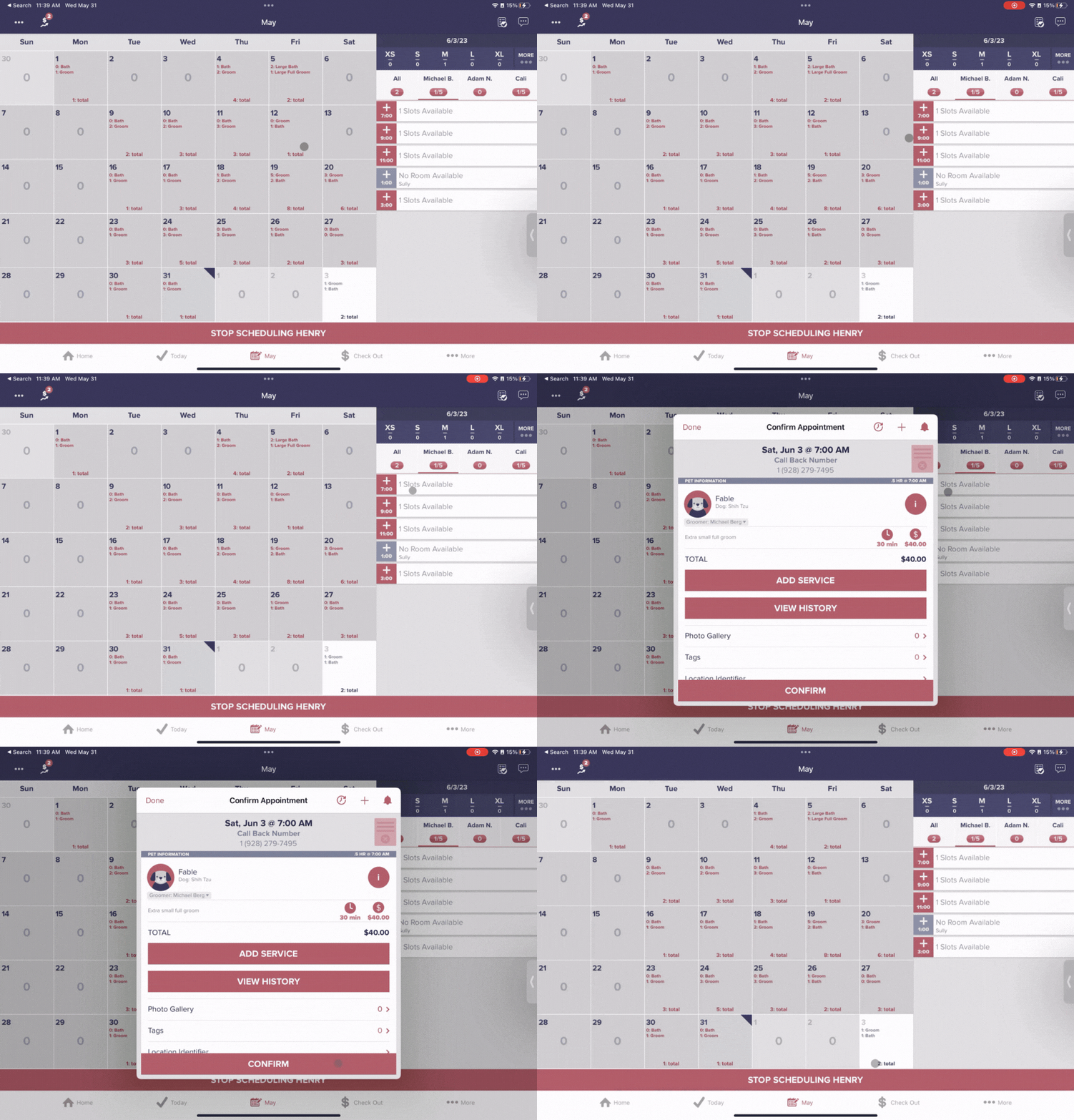
- Select "Send" to send the customer their schedule confirmation text message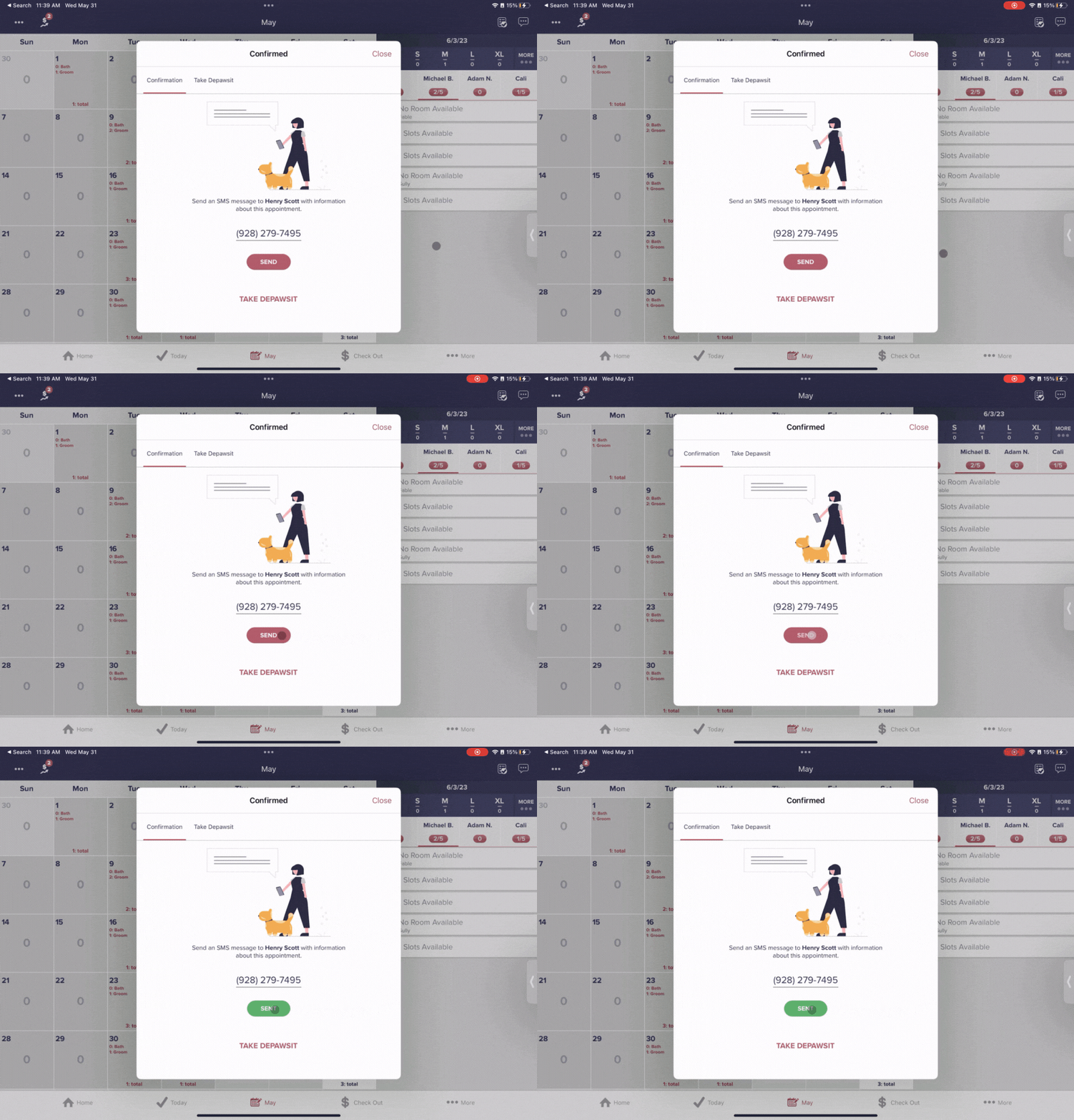
If you need any additional help, do not hesitate to reach out to Support@groomer.io. 🐾