![iTunesArtwork@2x.png]](https://help.groomer.io/hs-fs/hubfs/iTunesArtwork@2x.png?height=50&name=iTunesArtwork@2x.png)
What is Bulk scheduling?
Bulk scheduling books pets by drop-off time. Instead of blocking off how long each groom takes, you see every groomer's open slots for the day and drop the pet into one. It's a great fit for salons where several pets are dropped off in the morning and picked up as they're finished.
Prefer to book by how long each groom takes? See How to Book an Appointment - Block.
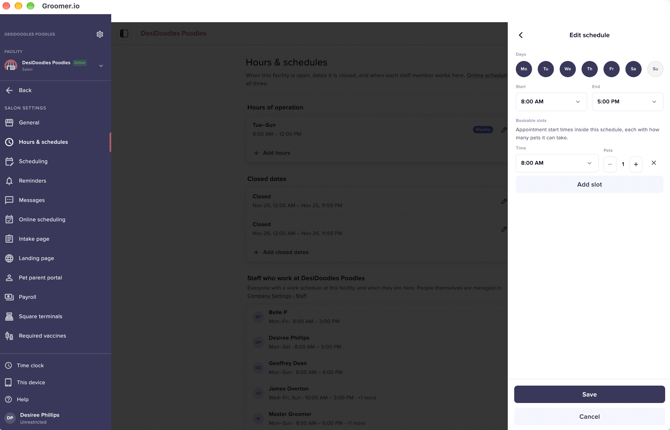
Slots come from each employee's schedule. From Facility Settings > Hours & Schedules > Select the Staff Member > Tap on the current Staff Schedule > Add Slots.
This step must be set up before you can book any appointments. View How to Set Up a Staff Member Schedule for more details.
-
Select a date to begin scheduling.
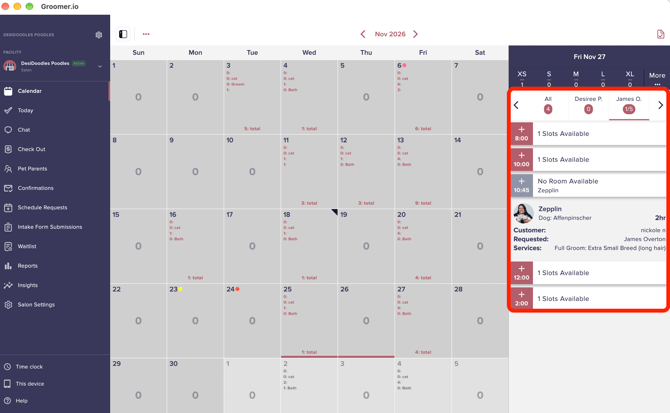
- Search for the pet parent
- Select the Slot you would like to book.
- Search for the Pet Parent, or Create a New Customer.
- Select the Pets you want to schedule.
- Select Add Service and pick the service(s) for each pet. Prices and durations fill in based on the pet's breed and coat, however, these can be manually adjusted once the services is added to the appointment. Tap on the price, or duration to edit. Be sure to hit Save!
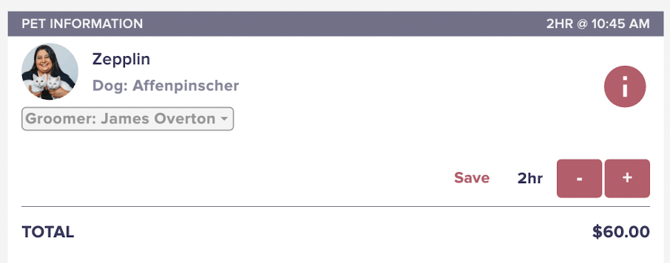
- Once you've updated all your appointment details, select Confirm to finalize the booking.
- Want to secure the appointment? Contact Support to enable Deposits or Card on File.
- Select Send to text the pet parent their Schedule Confirmation text.
Good to know:
- Multiple pets, one visit: Book all of a pet parent's pets in the same appointment so they share one confirmation and one checkout.
- Automated messages: Once the appointment is booked, the pet parent gets an automated text right away. They will receive the Appointment Reminder text to confirm, prior to the appointment. You can customize these messages by contacting Support.
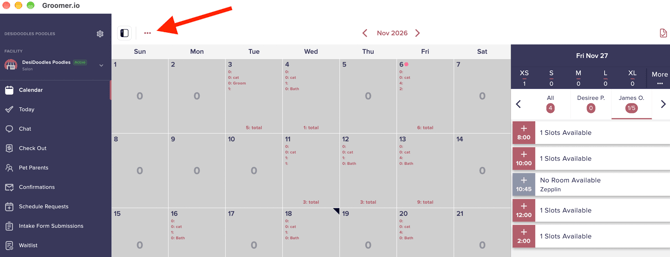
- Switching scheduling styles: You can choose between Bulk and Block anytime. Tap on the 3 dots in the top left of the Calendar Screen to switch scheduling styles.