![iTunesArtwork@2x.png]](https://help.groomer.io/hs-fs/hubfs/iTunesArtwork@2x.png?height=50&name=iTunesArtwork@2x.png)
Taking Payment at Check Out
- From the Check Out screen, tap the 3 dots on the Appointment card to process payment.
- Select Take Payment. If the client has used Online Pay, it will automatically be marked as PAID. You can tap the 3 dots to Complete Payment.
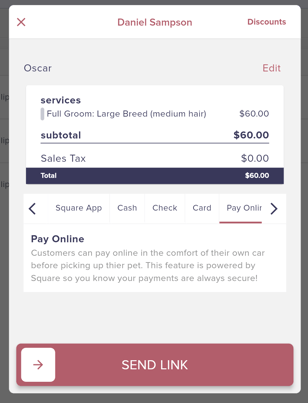
- Otherwise, choose how they're paying:
- Card on File: Charges the saved card. The payment goes straight into your Square account.
- Pay Ahead link: Send or resend the online payment link. Great for pet parents who like to use Google Pay, Apple Pay or a different Card on File. This is also great for clients that have someone else picking up, than who is paying.
- Terminal: Send the total to your Square Terminal or Clover device to take payment in person.
- Cash or Check
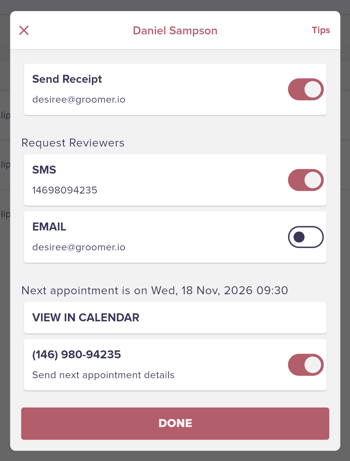
- When the payment goes through, you can send the pet parent a receipt, request reviews, and schedule their next appointment from the Follow Up screen.
- Select DONE to complete the checkout.
Good to Know:
Checkout only takes a few seconds, and a lot of Groomer.io depends on it. When an appointment is checked out, Groomer.io can:
- Keep your reports accurate. Your sales, tips, services and staff reports only count checked-out appointments. Open appointments can make your numbers look lower than they really are.
- Prompt you to book the next appointment. Checkout is the easiest time to get the pet's next visit on the calendar before the pet parent leaves.
- Schedule a Reminder If the client is not ready to schedule their next appointment, you are able to send a Comeback Reminder for any week interval, the default is generally set to 6 weeks.
- Send recurring appointment details. Pet parents with recurring appointments get their next appointment details after checkout.
- Renew recurring appointments. Recurring schedules can only be renewed from this screen. You will be prompted as the schedule comes to the end of its cycle.
- Keep pet parent history up to date. Visit history, last-groomed dates, groomer, pricing, and appointment notes are stored within the View History tool.